
Search for answers or browse our knowledge base.


The date and time picker is in the top-right corner of every HEAL UI screen. Whatever range you pick, the screen refreshes to match.
Pick a quick range
Click the timestamp in the top-right corner. A preset dropdown opens.

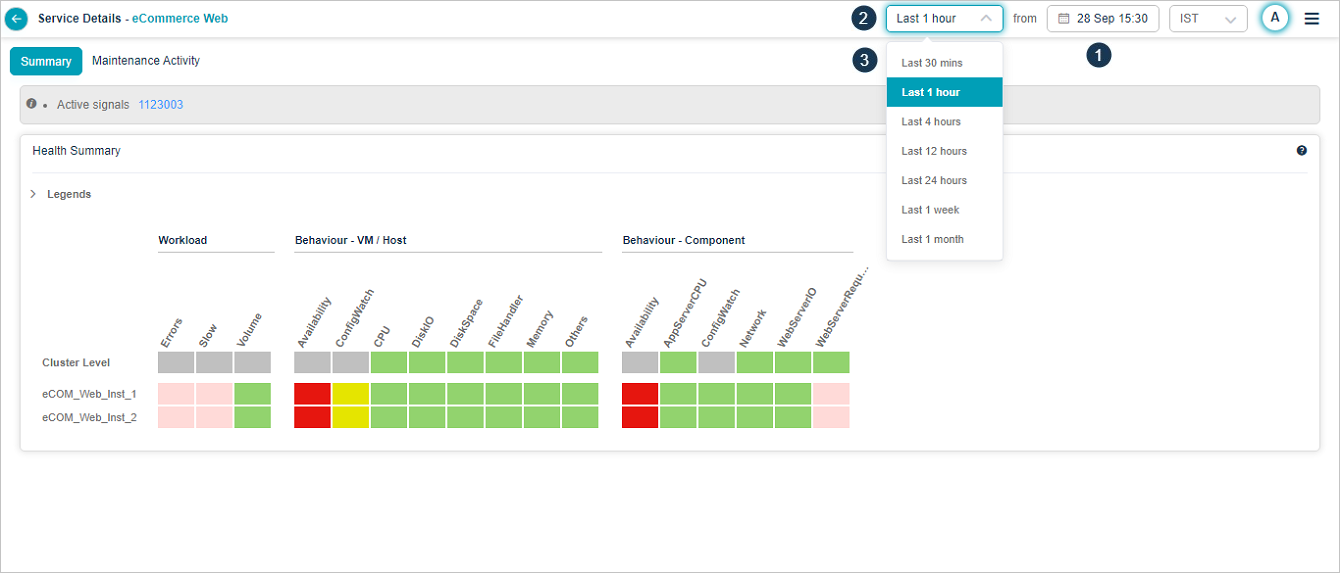
1. Current timestamp. Click to open the date and time picker.
2. Duration dropdown. Pick a quick range for the screen.
3. Available presets. Last 30 minutes, 1 hour, 4 hours, 12 hours, 24 hours, 1 week, or 1 month.
Set a custom date and time
Click the timestamp box to open the calendar and time picker.
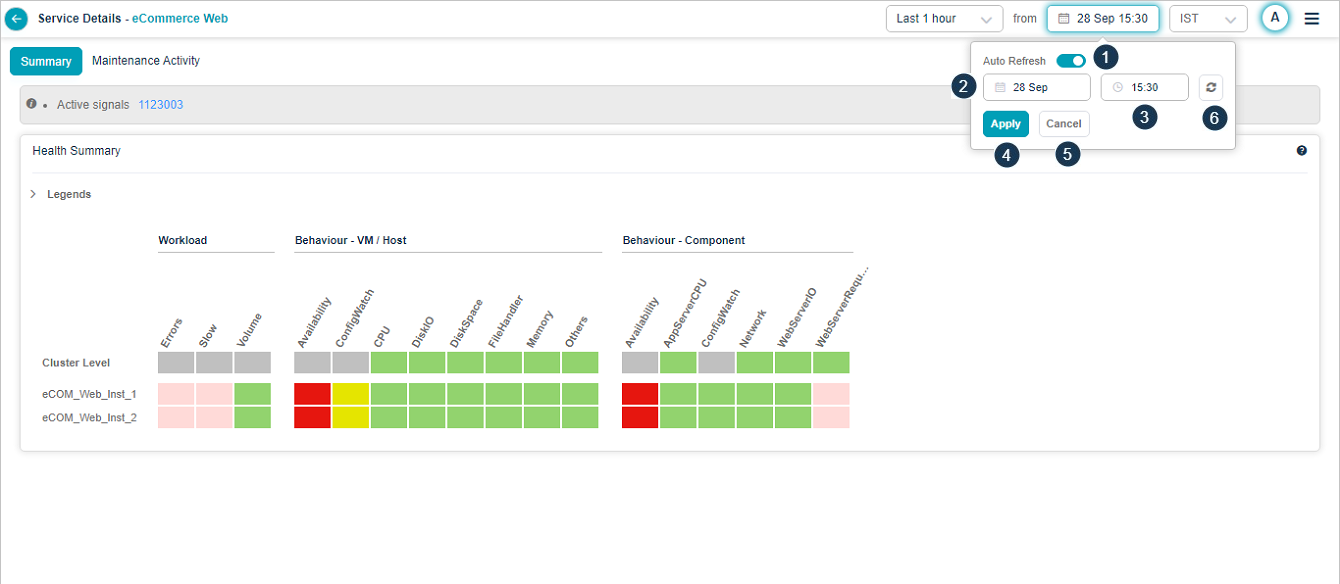
1. Auto Refresh. Turn it on to refresh the screen on a set interval. The interval is configurable. With it off, you have to change the time manually to see new data.
2. Date. Click to open the calendar.
3. Time. Click to change the time.
4. OK. Apply the selected date and time.
5. Cancel. Discard your changes.
6. Reset icon. Snap back to the current date and time.
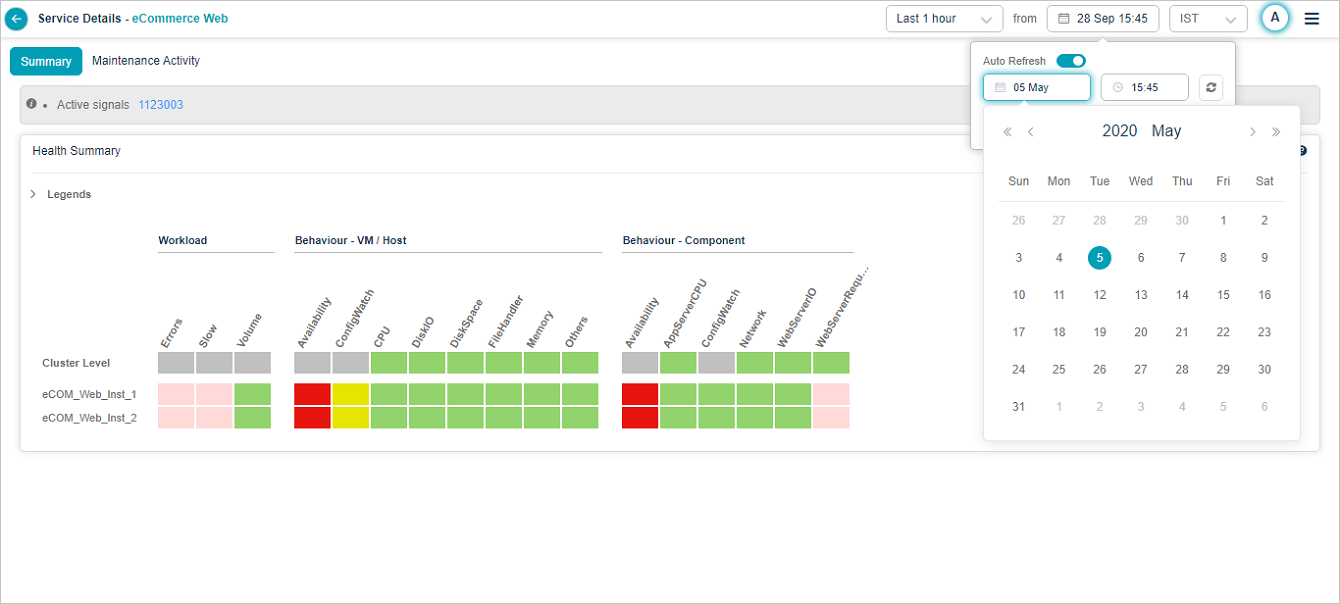
Pick the date
Pick any date from the calendar.
Pick the time
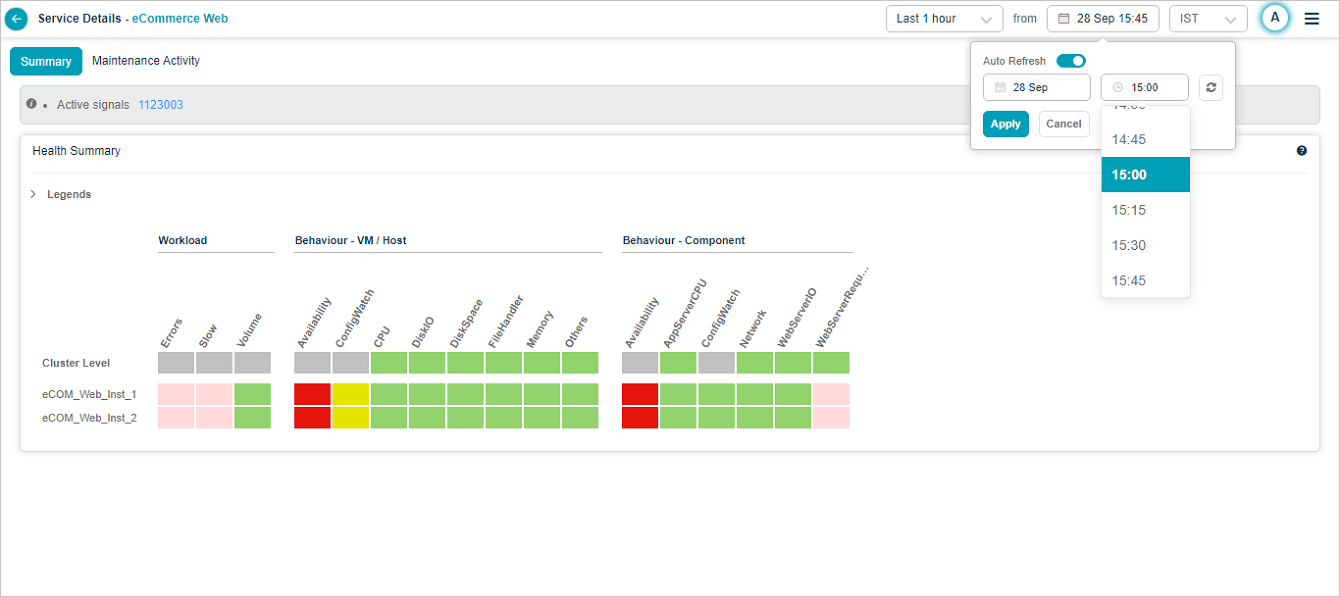
The time picker uses 15-minute steps in 24-hour format.
Next
- Time Zones . set your preferred time zone.
- Navigating to the HEAL UI . main dashboard tour.
