
Search for answers or browse our knowledge base.


Signal Notifications let you control which alerts you get and how you get them. Each user picks email or SMS, recipient lists, and the granularity (component, instance, category, or all) for each application they have access to.
An individual event is created in one of three ways:
- Automatic via the Machine Learning Engine (MLE).
- Manual threshold-based rule.
- Availability-based rule.
User-specific notifications
Many alerts can be generated, but each user only cares about a subset. Notifications are split into:
- Application level. Per-application defaults.
- User level. Each user defines their own preferences so they only get the alerts they need.

Example assignments:
- User 1 (OS). Country Application. Selected host-level alerts.
- User 2 (MW). MW Application. Selected component-level alerts.
- User 3 (DB). DB Application. Selected component-level alerts.
- User 4 (App Owner). Country Application. Selected all alerts.
Scenario walkthrough:
- Component-level event on WAS. Early Warning raised. Notifications go to User 2 and User 4.
- Component-level event on DB. Early Warning continues. Notifications to User 3 and User 4.
- Host-level event on IHS. Notifications to User 1 and User 4.
- Host-level event on DB. Notifications to User 1 and User 4.
Severity-change emails and reminder emails go to every user who already received notifications for the signal. Transaction-related KPI events always go to every user assigned to the application, with no opt-out.
Open My Profile
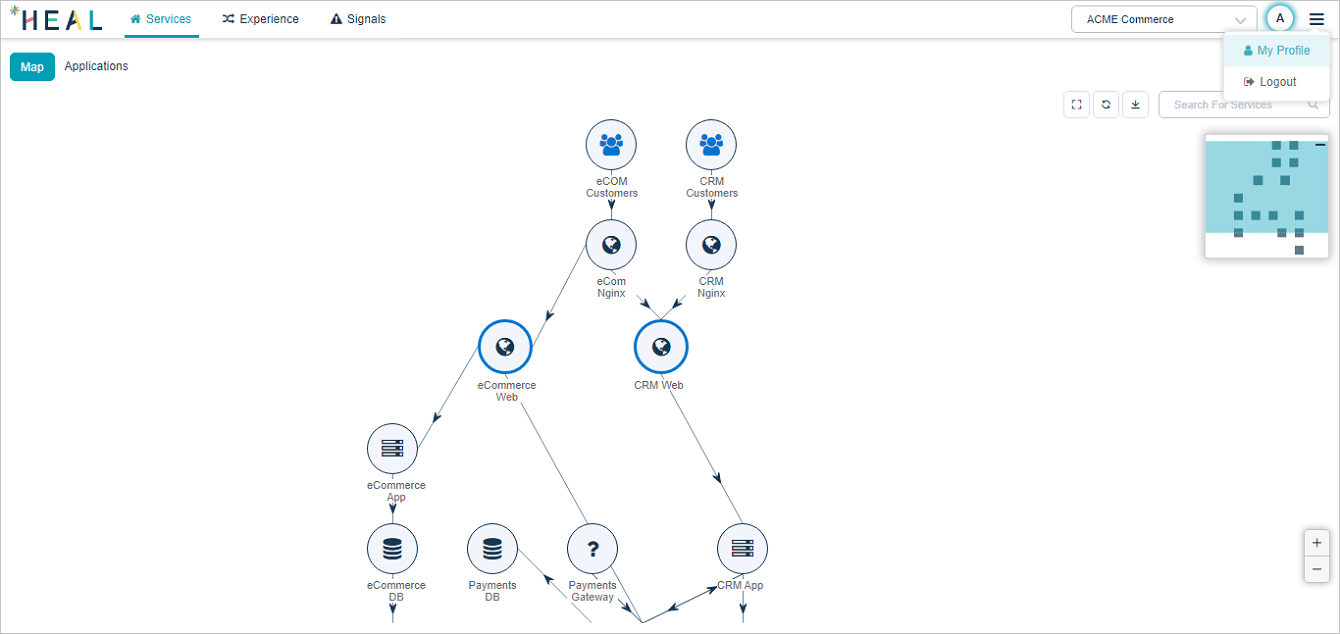
Click the user icon in the top-right corner. Pick My Profile. Email and SMS settings are audited.
Signal Notifications
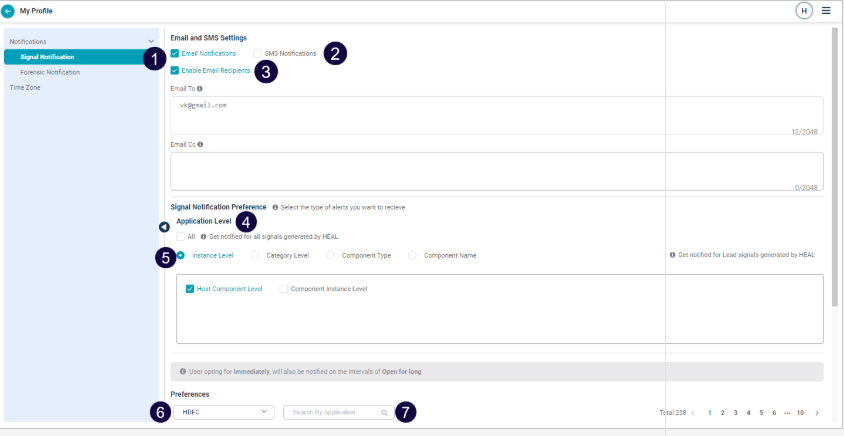
1. Email Notifications. Switch on to receive emails. User-level setting that applies across every account and application you can access.
2. SMS Notifications. Same scope. Switch on for SMS.
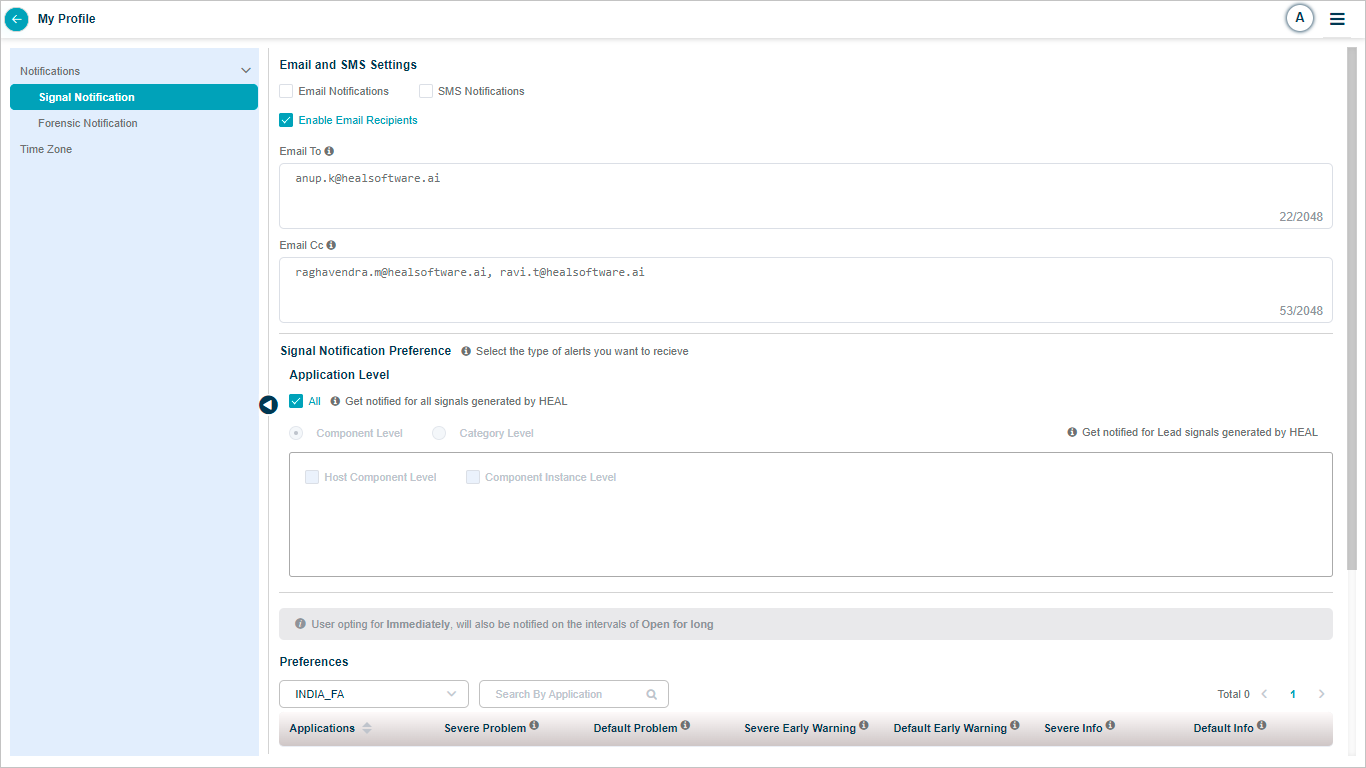
3. Email recipients. Switch on Enable Email Recipients to send to specific addresses. Add comma-separated addresses to Email To and Email Cc. Notes:
- If both boxes are empty, emails go to the default user the recipients are added to.
- If you fill Email Cc, you must also fill at least one address in Email To.
- Recipients only get emails when Email Notifications is on.
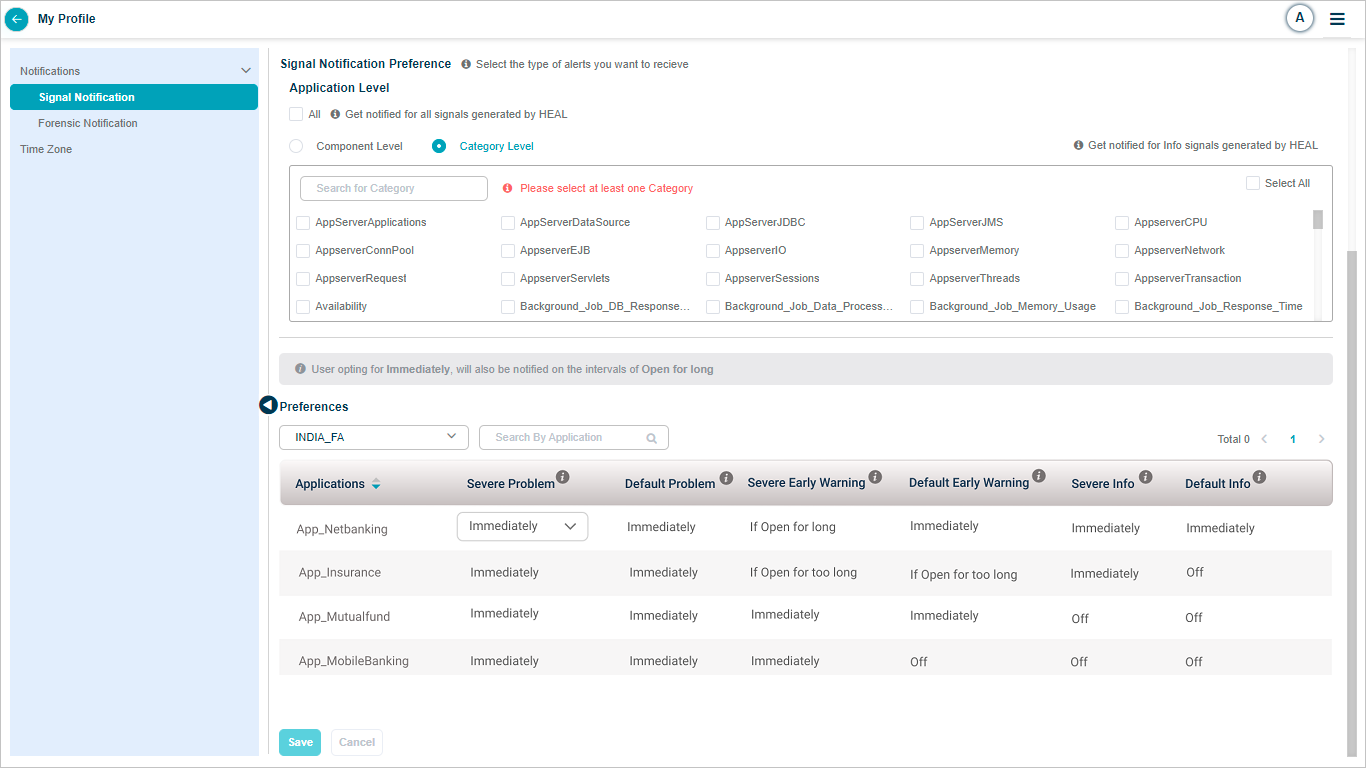
4. Signal Notification Preference. Pick the alert type. All means notifications for every signal HEAL generates.
5. Granularity. Pick Component Type, Component Name, or Instance Level for Lead Signals. Pick Category Level for Info Signals. The choice applies to every application you are assigned to. New users default to Application level.
6. Account selection. Pick the account whose preferences you are setting. The preferences apply to every application in that account.
7. Application search. Find an application by full or partial name.

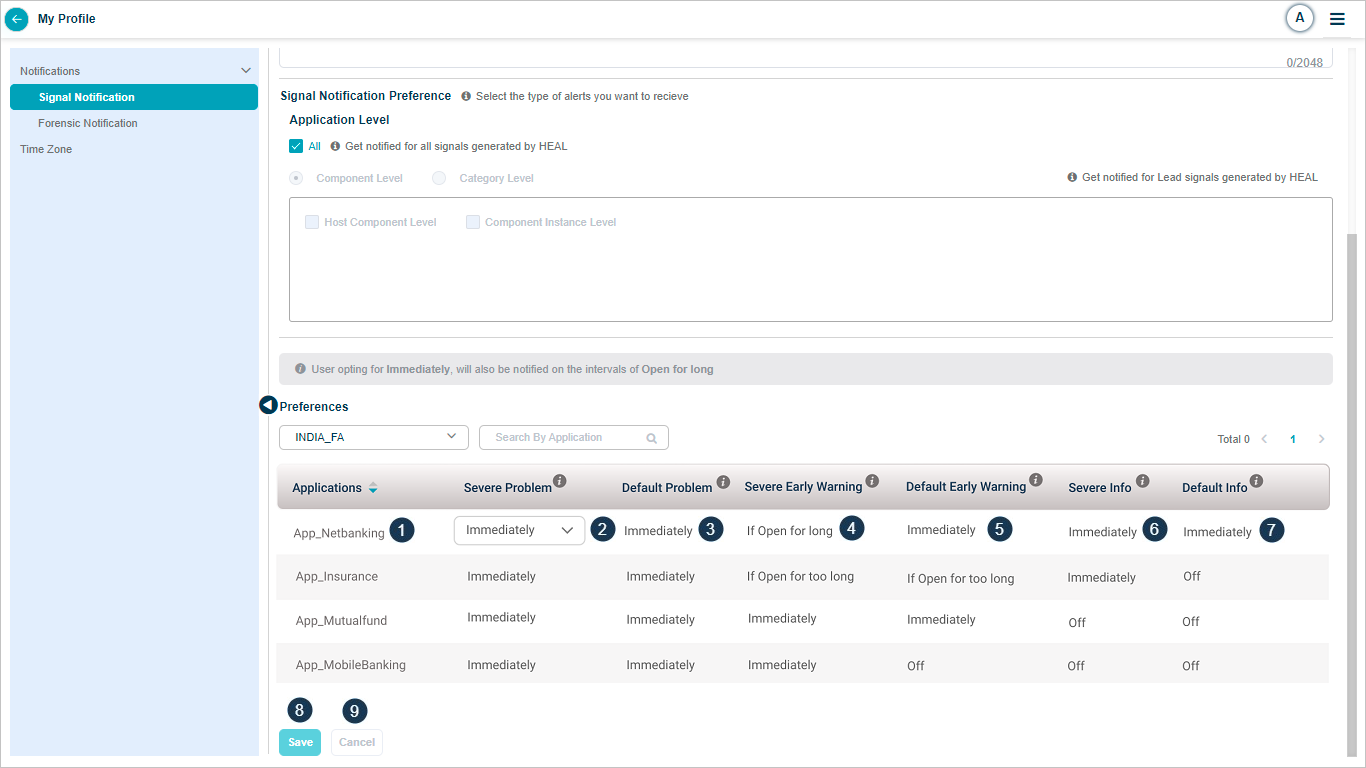
1. Application list. Applications the Product Admin granted you access to.
2. Severe Problem. Pick a notification preference.
3. Default Problem. Pick a preference.
4. Severe Early Warning. Pick a preference.
5. Default Early Warning. Pick a preference.
6. Severe Info Signal. Pick a preference.
7. Default Info Signal. Pick a preference.
8. Save. Apply the settings.
9. Cancel. Discard the settings.
Category Level selection (Info Signals):
Component Level selection:

Available preferences for a Lead Signal:

Available preferences for an Info Signal:

For If Open for long and If Open for too long preferences, you can see the configured duration.
Forensic notifications
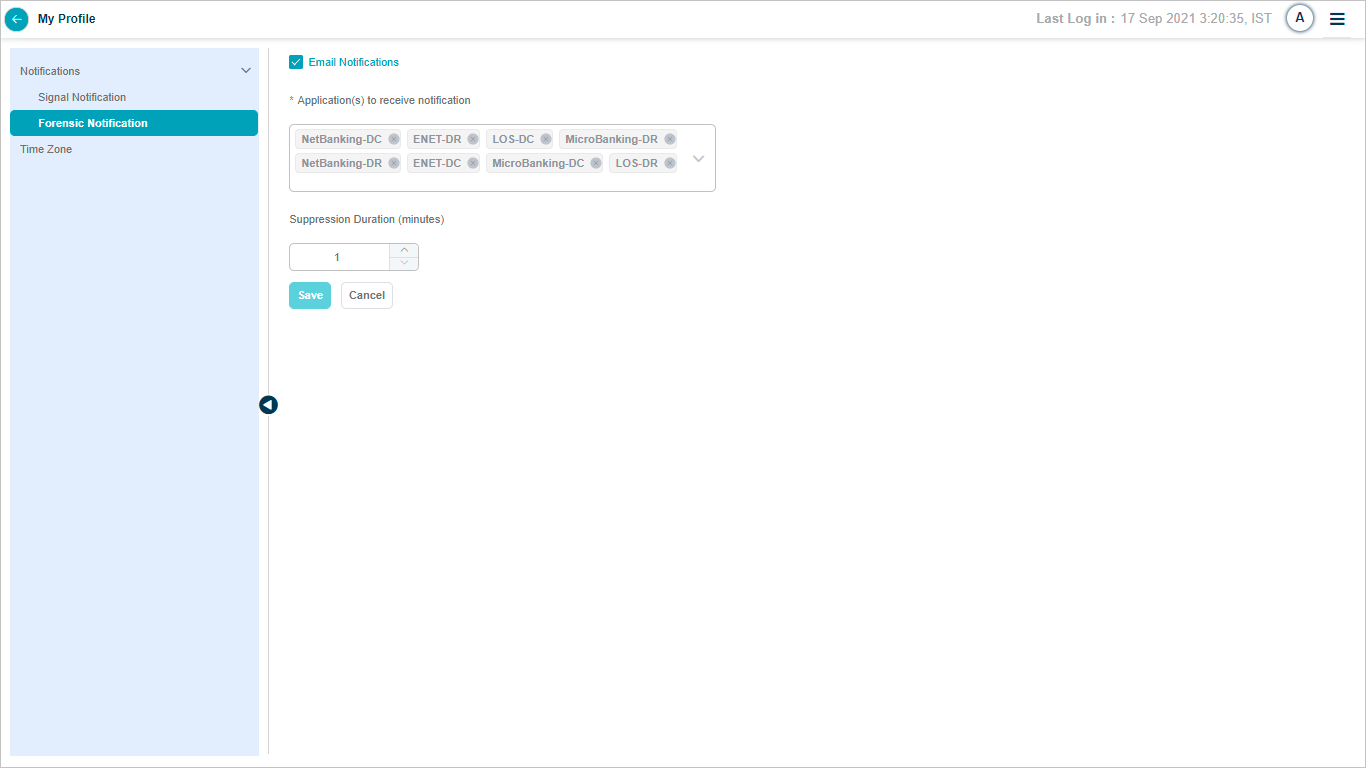
Switch forensic notifications on or off, pick the applications you want emails for, and enter a suppression duration in minutes (the gap between two forensic emails). Emails fire only when the toggle is on.
Batch Job enabled
When batch job monitoring is on, you also see batch signals in the HEAL UI.
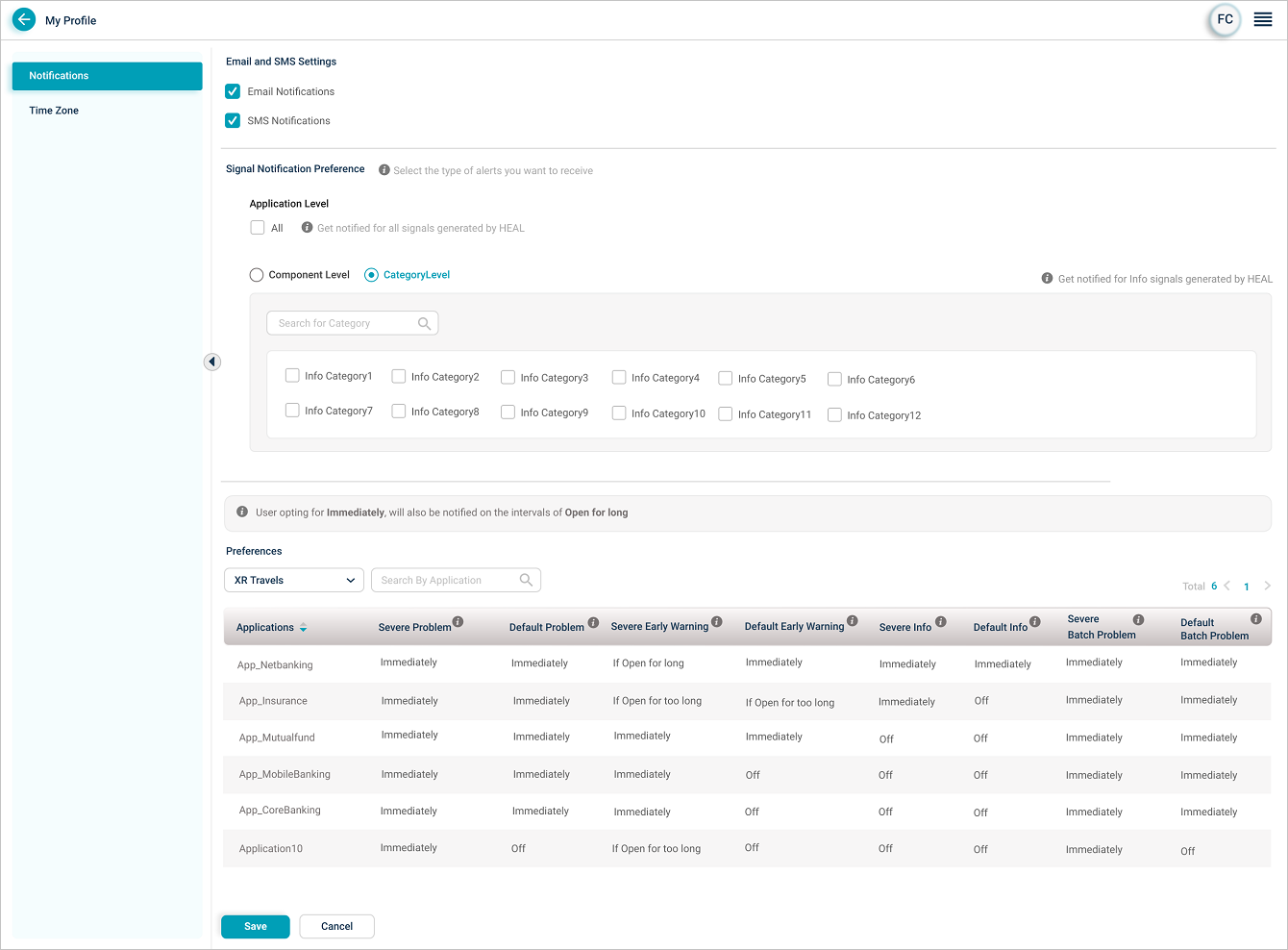
Pick preferences for severe and default batch signals.

Notification preferences
Set per-application preferences for each signal type. The four options:
- Immediately. Notify as soon as the signal is raised. Default for new applications.
- If Open for long. Notify when the signal stays open past the “long time” threshold (admin-configured in Control Center).
- If Open for too long. Notify when the signal stays open past the “very long time” threshold (admin-configured in Control Center).
- Off. No notifications.
For Immediately, you receive notifications when the signal opens, upgrades, or closes.
For the long and too-long options, you receive:
- A notification when a signal is raised on an application assigned to you.
- Reminder emails on the long-time or very-long-time interval.
- A notification when the signal closes or upgrades.
- A notification when an assigned application is affected because one of its services lies in the path of a signal raised on another application you do not own.
Multi-level subscription
If you pick Immediately, HEAL also assigns you Open for long and Open for too long. If you pick Open for long, HEAL also assigns Open for too long.
Summary placeholders
In the Behavior Event Summary, HEAL shows the last N events. Severe events come first, with default events filling in if there are fewer than N severe ones. If severe events exceed N, the latest severe ones win. The Workload Event Summary follows the same logic.
Alert notification on severe event
Every severe event triggers a notification to every user with the Immediately preference. If multiple severe events fire in one minute across or within a service, HEAL sends one consolidated notification instead of several. Summary placeholders carry the details. This setting is off by default.
Notification reminders
HEAL sends reminder emails to users with Open for long and Open for too long. For example, if Open for long is 15 minutes and Open for too long is 30 minutes, reminders fire every 15 or 30 minutes after the signal opens. The first email goes out 15 minutes after the signal opens, then every 15 minutes, ending when the signal closes or upgrades. The same pattern applies for too long.
If a reminder is scheduled for 12:00 PM and at the same moment two services join the timeline, five new severe events fire, and the signal severity changes from Default to Severe, HEAL sends two emails. One is the reminder. The other carries the new severe events, the new services, and the severity change. Placeholders include the event details.
Examples
Notifications when an end-user-impacting signal stays open for a long time.
Set Default Problem and Severe Problem for every assigned application to If Signal remains open for long time. You only get notifications when those problems stay open past the threshold.
Mixed preferences walkthrough.
Settings for one application:
- Default Early Warning If Open for too long = 4 hours.
- Severe Early Warning If Open for too long = 2 hours.
- Severe Problem = Immediately.
HEAL detects a Default Early Warning at 1 PM:
- No notification until 5 PM.
- After 5 PM, if the warning still persists, you get the reminder (within 15 minutes).
- Reminders continue every 4 hours.
- Final notification when the warning closes or upgrades. No notifications between reminders.
The Early Warning becomes severe at 2 PM (timer starts from when the signal began):
- No notification until 3 PM.
- After 3 PM, if the severe warning still persists, you get the reminder.
- Reminders continue every 2 hours.
- Final notification when it closes or upgrades.
The severe Early Warning becomes a severe Problem at 2:30 PM:
- You immediately get a notification that severity changed to severe.
- Every update on this signal ID also triggers an immediate notification.
Next
- Signal Notifications Templates . customize email content.
- Navigating Signal Tab . problems and early warnings.
- HEAL UI Security . session protection.
