
Search for answers or browse our knowledge base.


Batch Job Monitoring (BJM) tracks every batch job running across your environment. ML-based insights flag delays, failures, and abnormal behavior so you do not have to keep tabs on each job by hand.
A batch job is a set of background processes you group together. Processes have identifiers and arguments, and a job can be scheduled or ad hoc.
Open BJM
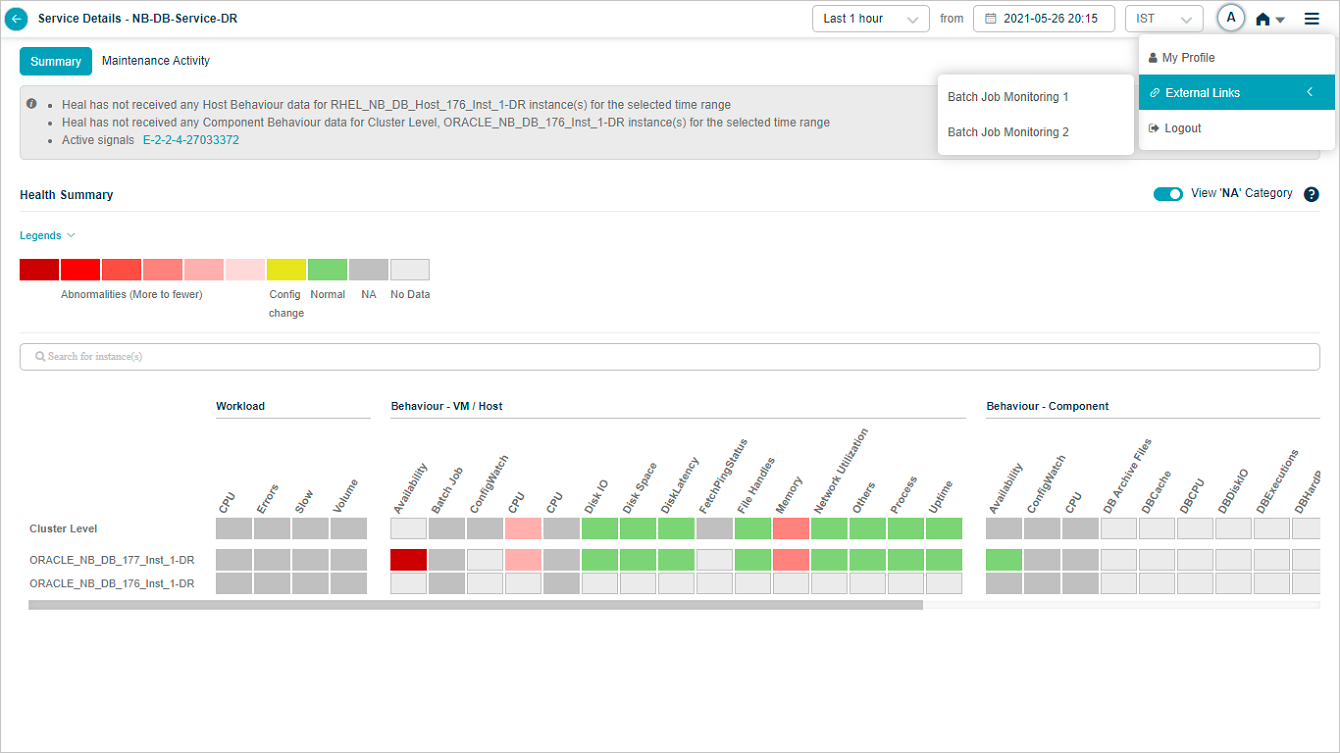
When the BJM module is installed and configured, you can reach it from the user menu.
1. Click the user icon in the top-right corner.
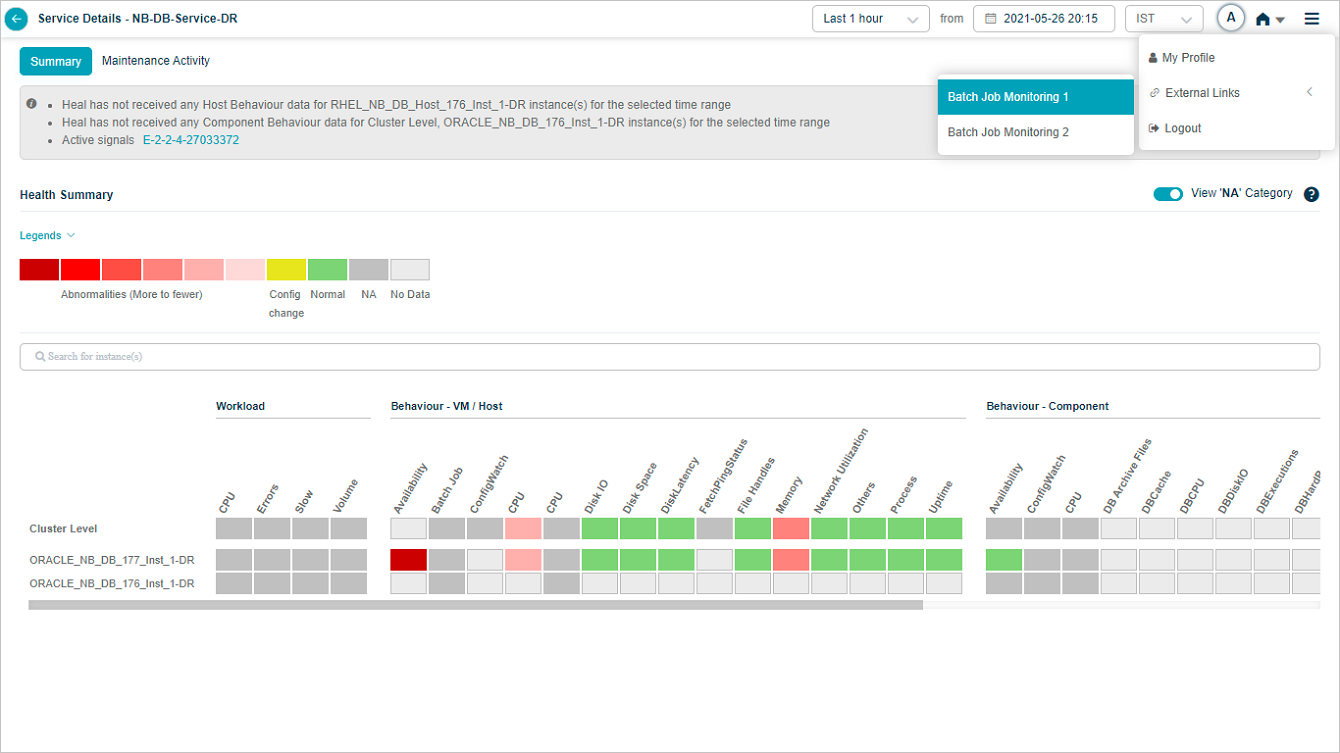
2. Click External Links. HEAL supports multiple external links and lists every BJM application.
3. Click the batch job application you want. The BJM application opens in a new tab.

Batch Job Summary
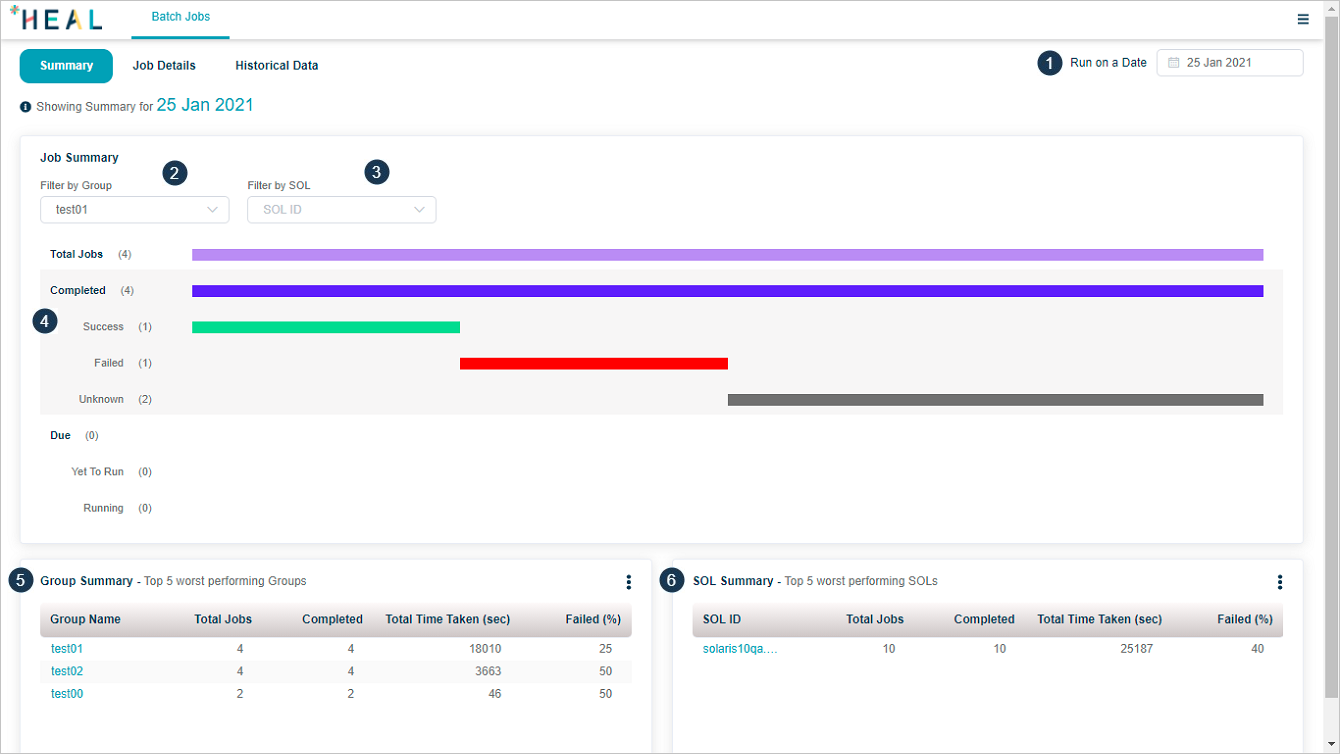
1. Date picker. Pick any date to see jobs scheduled for that day.
2. Filter by Group. Pick a group to see jobs in that group.
3. Filter by SOL. Pick a server (SOL ID) to see jobs on that server.
4. Status. A job is in one of these states.
- Yet to run. Scheduled to run today.
- Running. Running right now.
- Not Started. Was scheduled to be running by now but is not.
- Completed. Finished. Sub-status:
- Success. Ran successfully.
- Failure. Ran but failed.
- Unknown. A technical error or status-code mapping issue means HEAL cannot tell if the job succeeded or failed.
5. Top 5 worst groups. Five groups with the most failed jobs.
- Group name.
- Total Jobs. Total in the group.
- Completed. Jobs that finished.
- Time Taken. Last job end time minus first job start time, in seconds.
- Failed. Percentage of failed jobs.
6. Top 5 worst SOLs. Five SOL IDs with the most failed jobs. Same columns plus Total Time Taken for the SOL. Each job runs on a server, log files are per server with unique names.
Long SOL names are truncated. Hover the SOL name for the full string.

Filter by SOL using the Filter by SOL box.
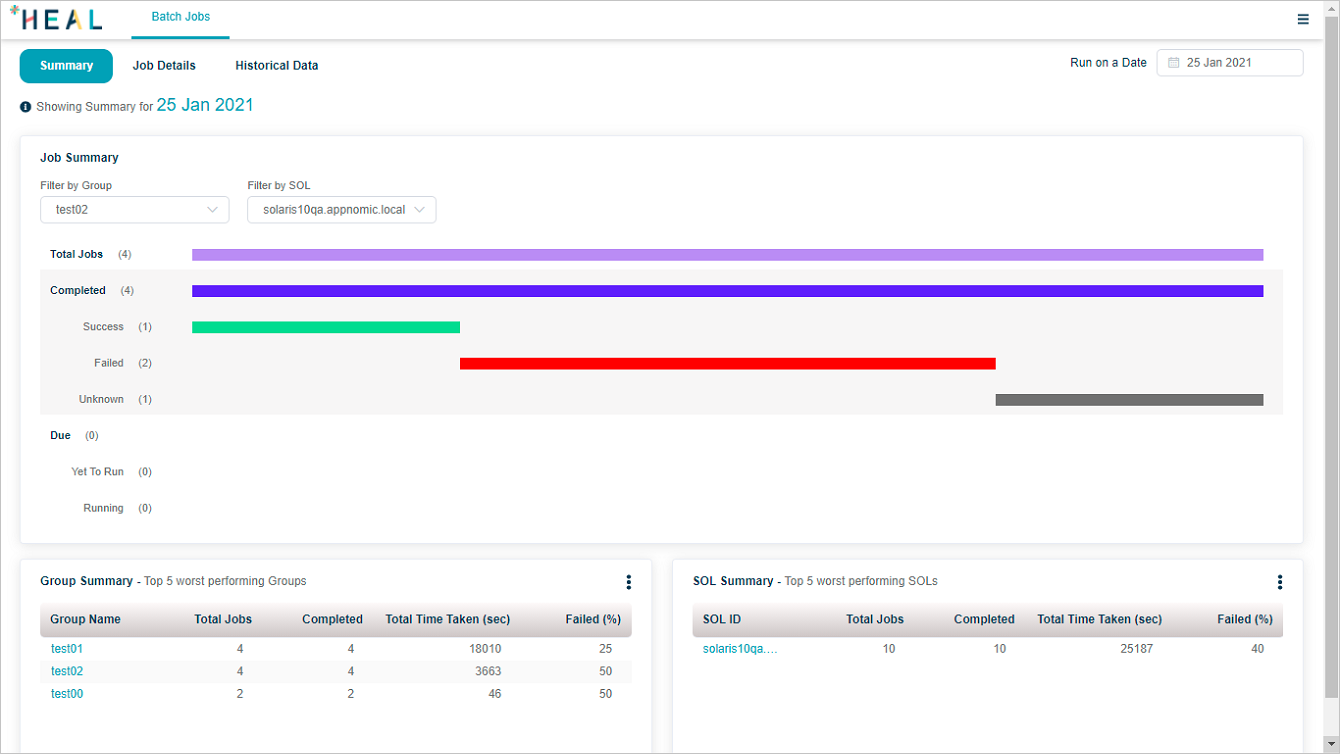
Filter by group using the Filter by Group box. One group can be part of multiple SOLs.
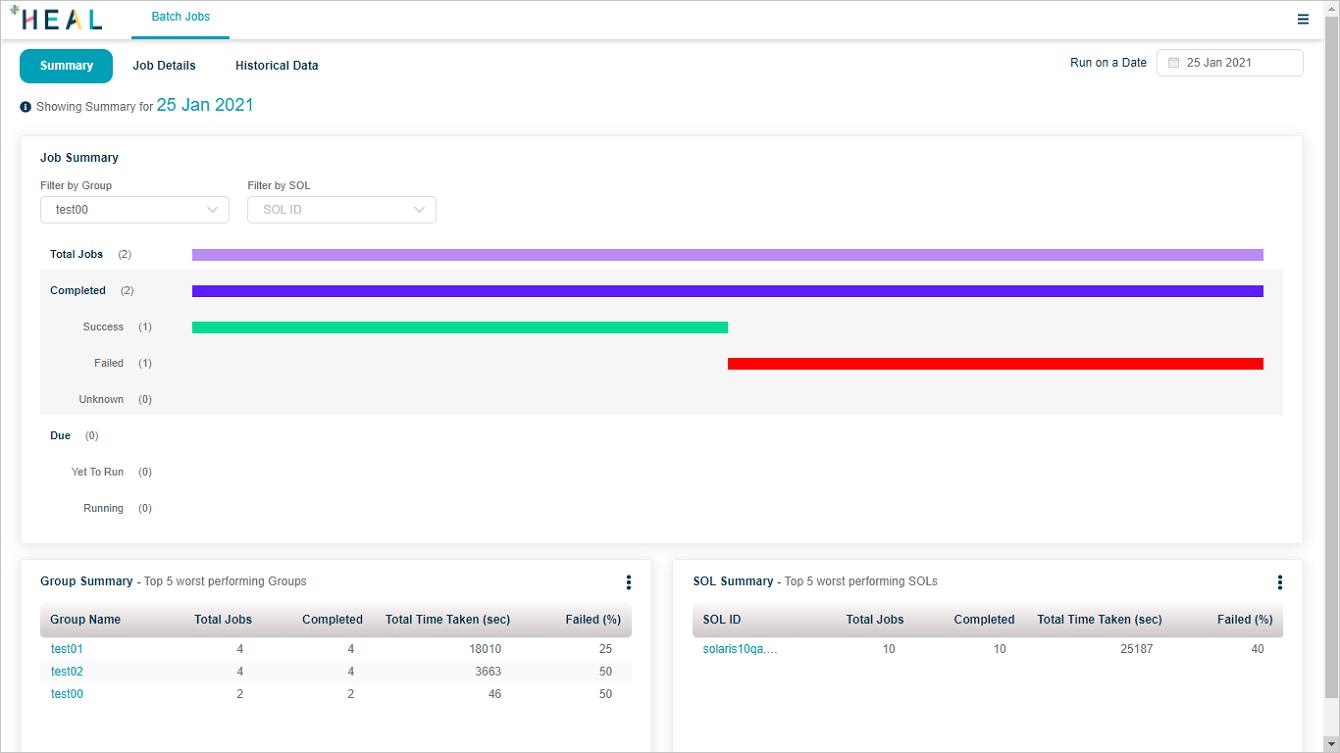
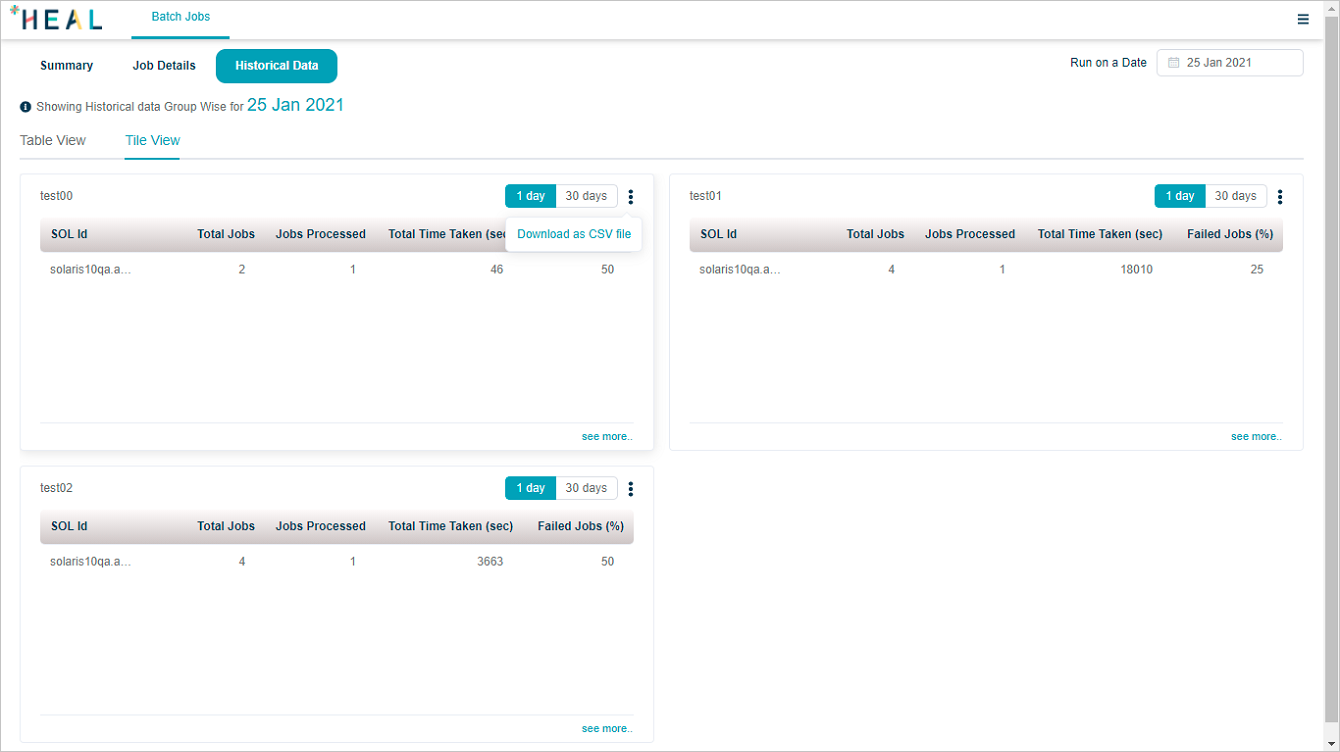
Click the menu icon and pick Download as CSV file to save the group or server summary.

Job details
Click Job Details to see every configured job.
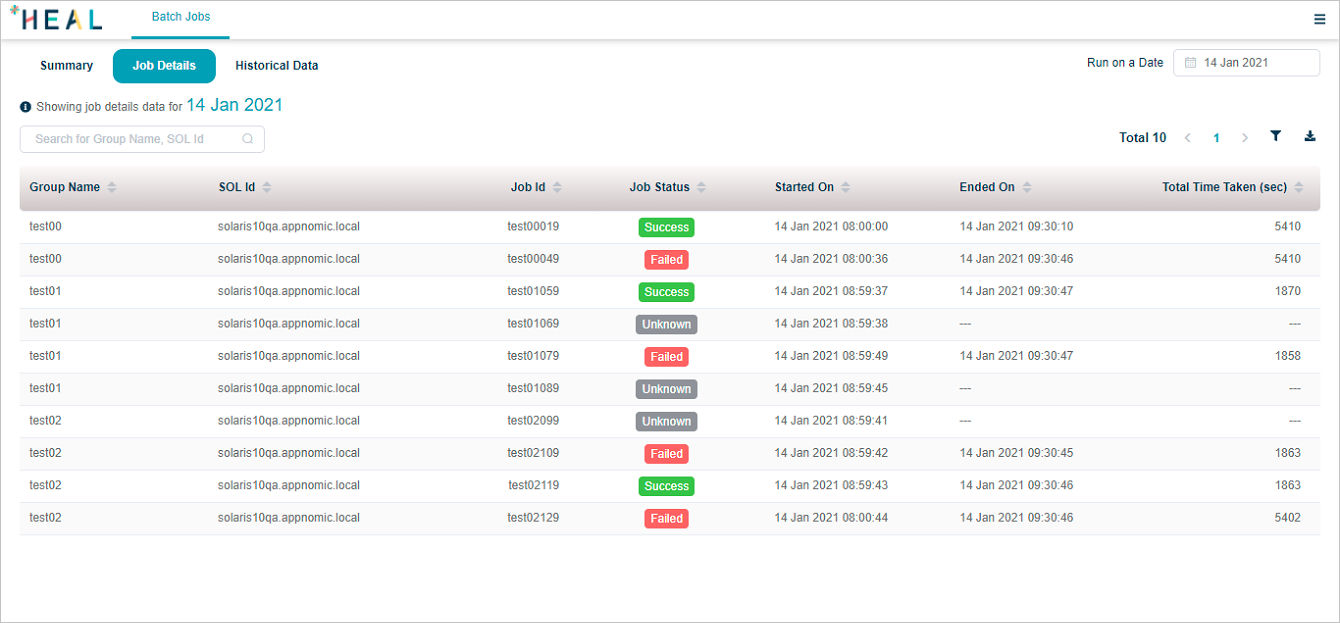
In Job Summary, click see more to see all jobs for a server. Use the page numbers to navigate.
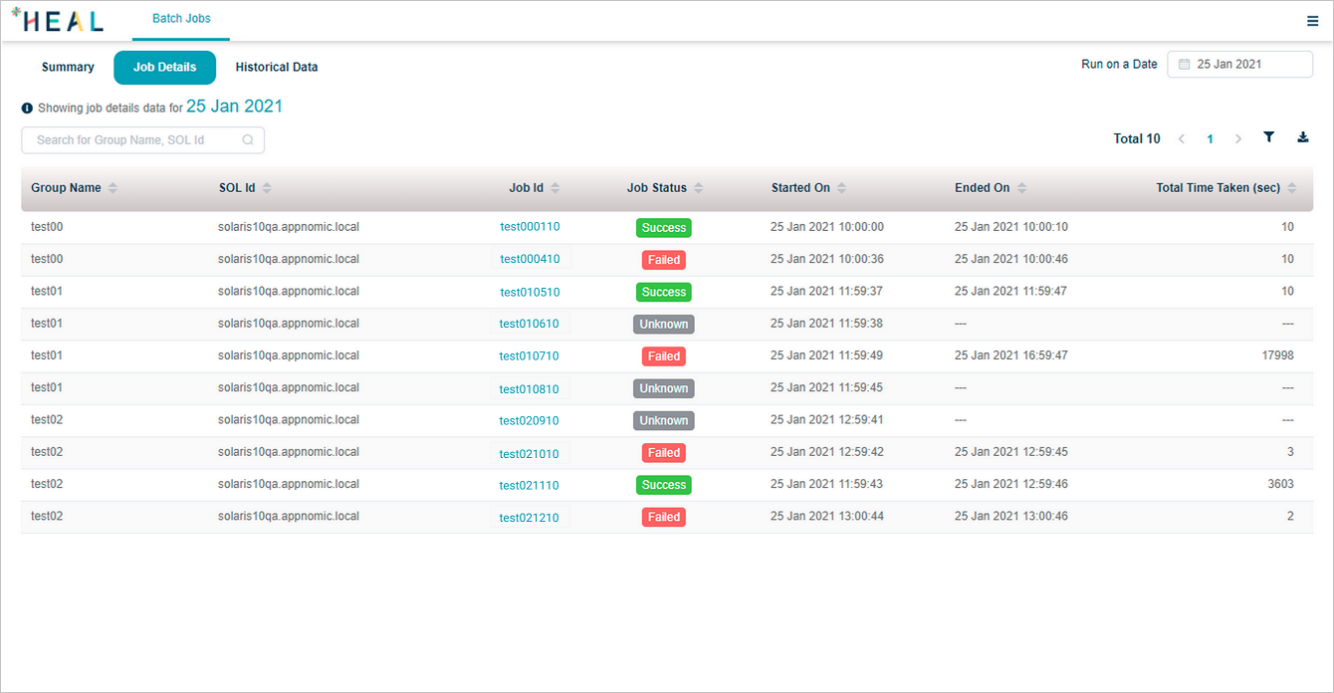
Click a SOL name in Job Summary to see all jobs on that server. The SOL name shows in the SOL Id box.
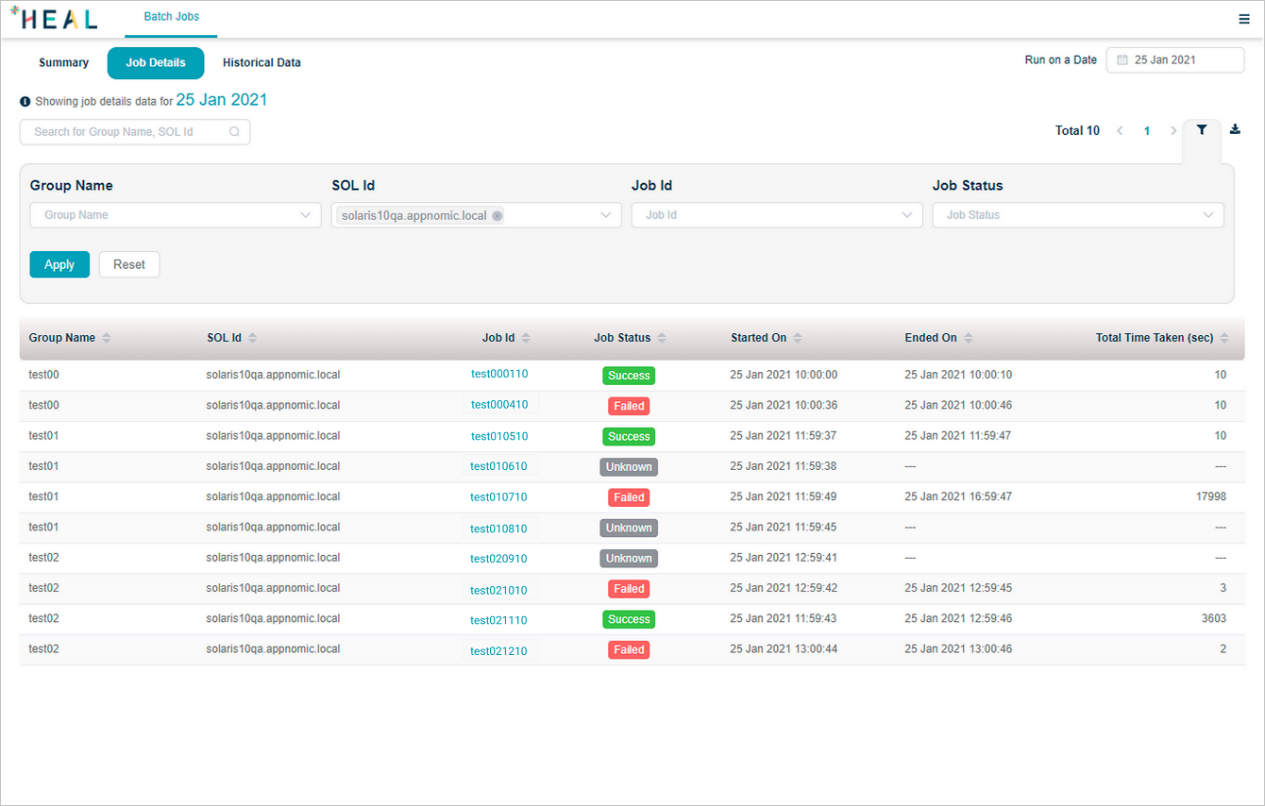
Click a group name in Job Summary to see all jobs in that group.
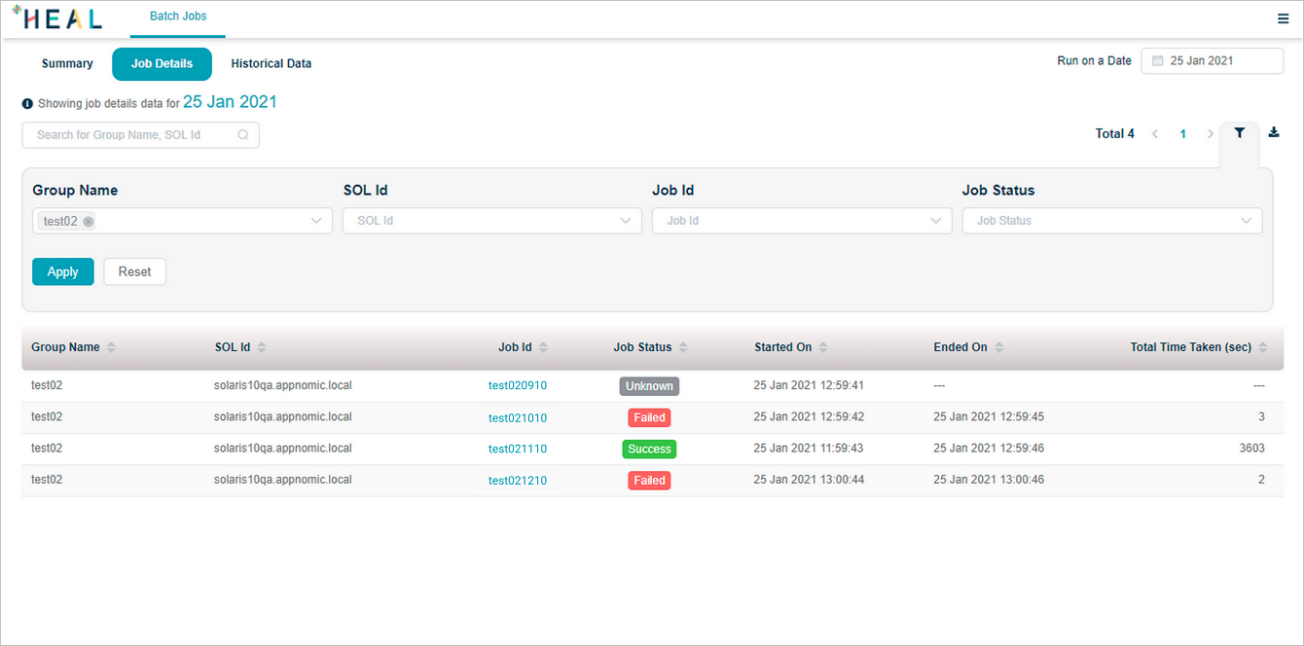
Click a status bar in Job Summary to see jobs in that status. For example, click Success:
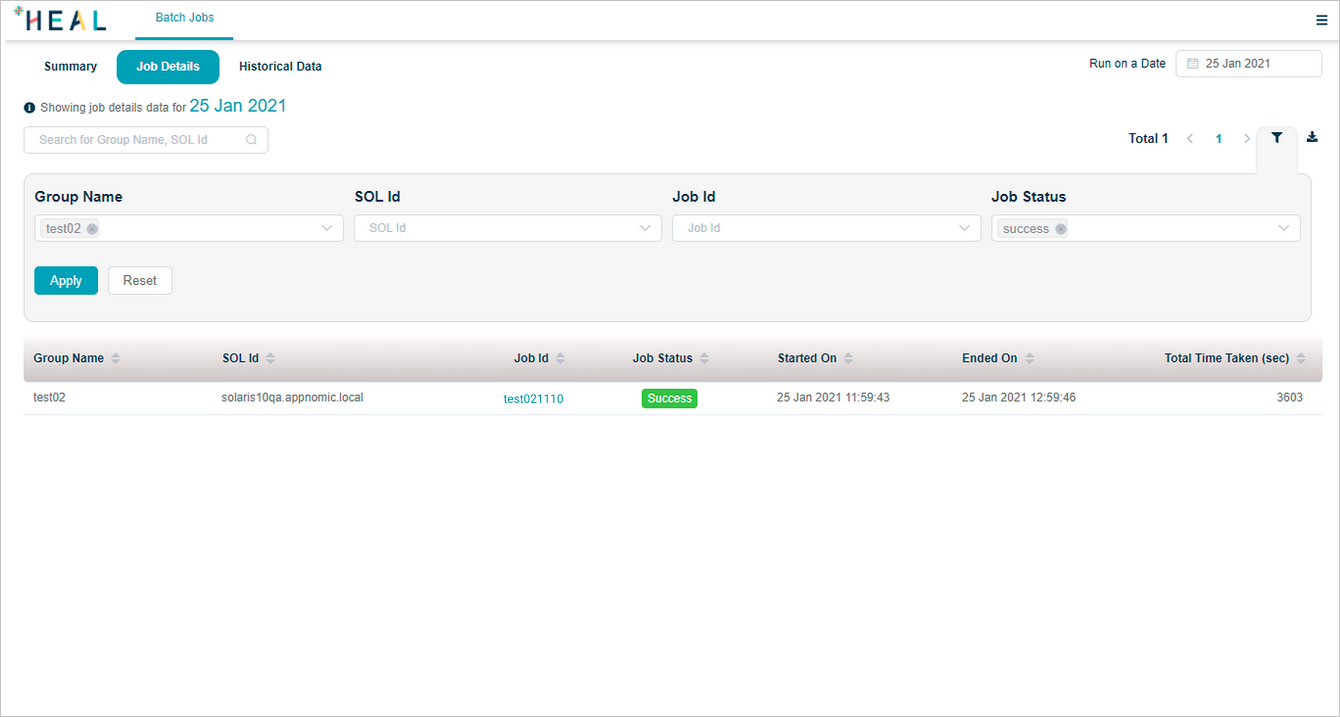
Click Completed:

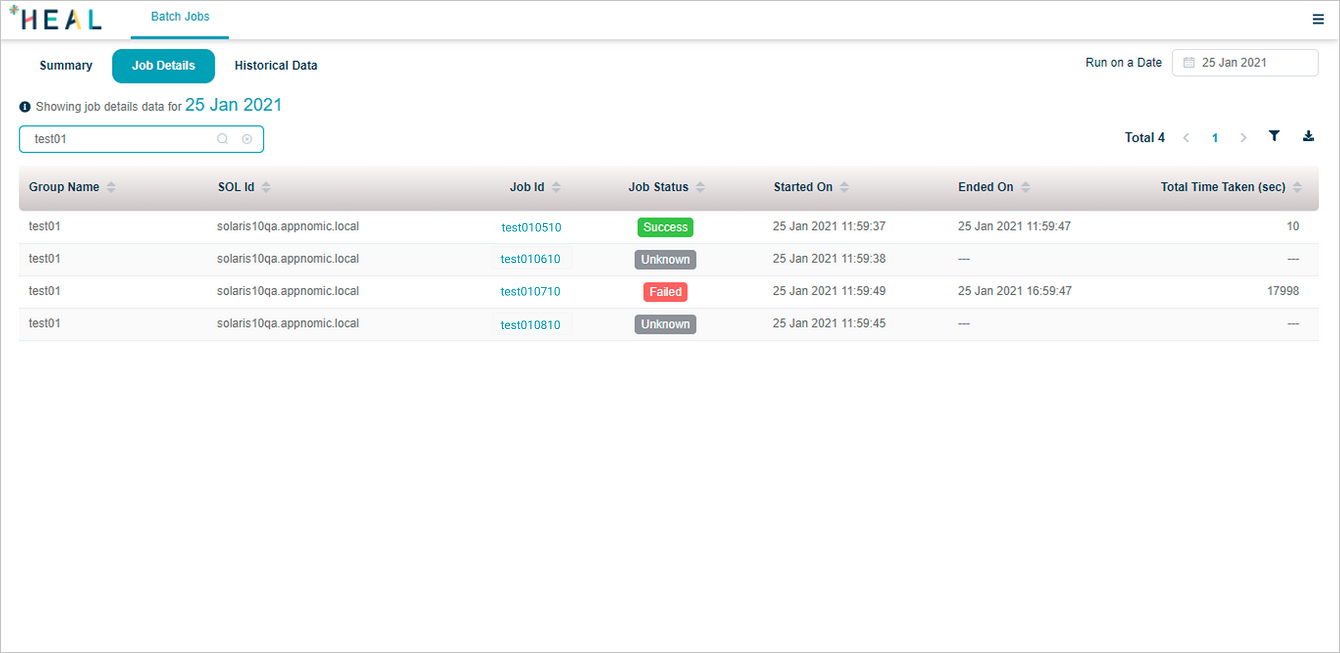
Search for a group or server (full or partial name) to see all jobs that belong to it.
Process details
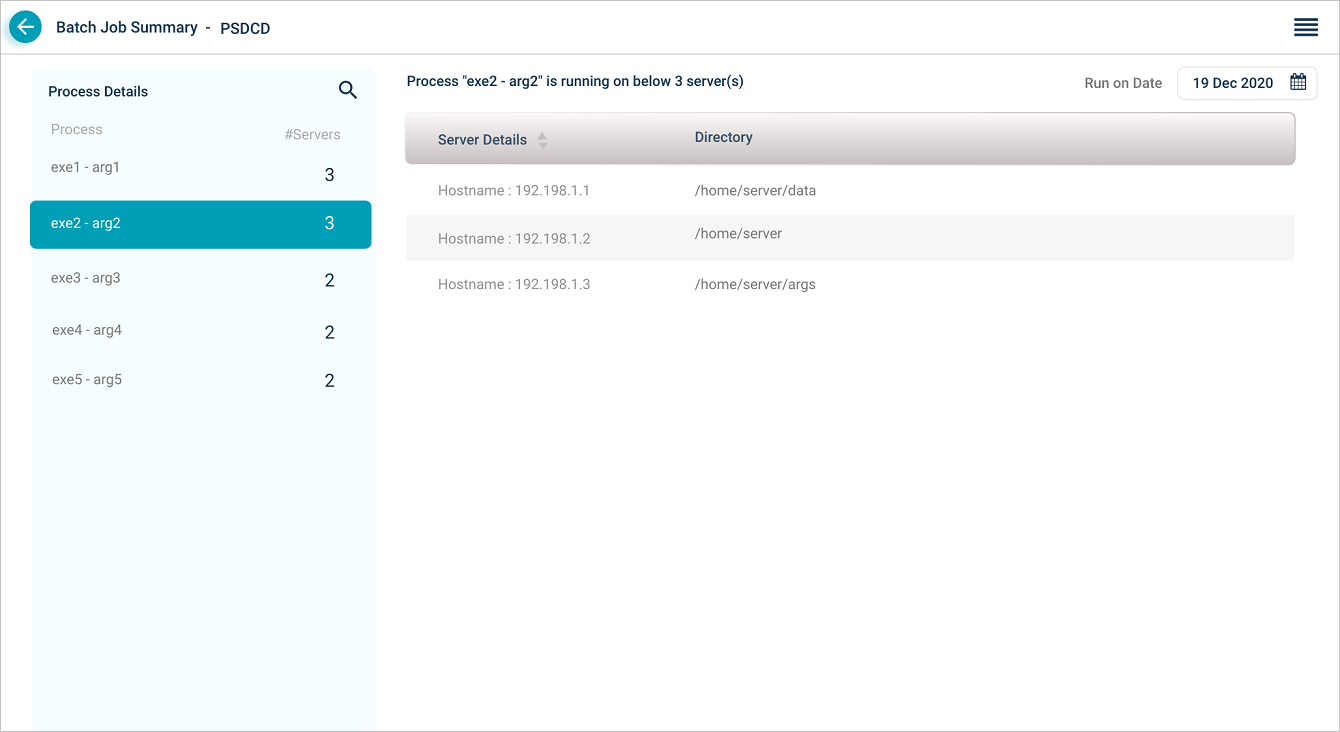
Click any job ID in Job Details to see its processes. The Process Details section shows the process name, arguments, and the number of servers running the process. Click any process to see its details and the server paths.
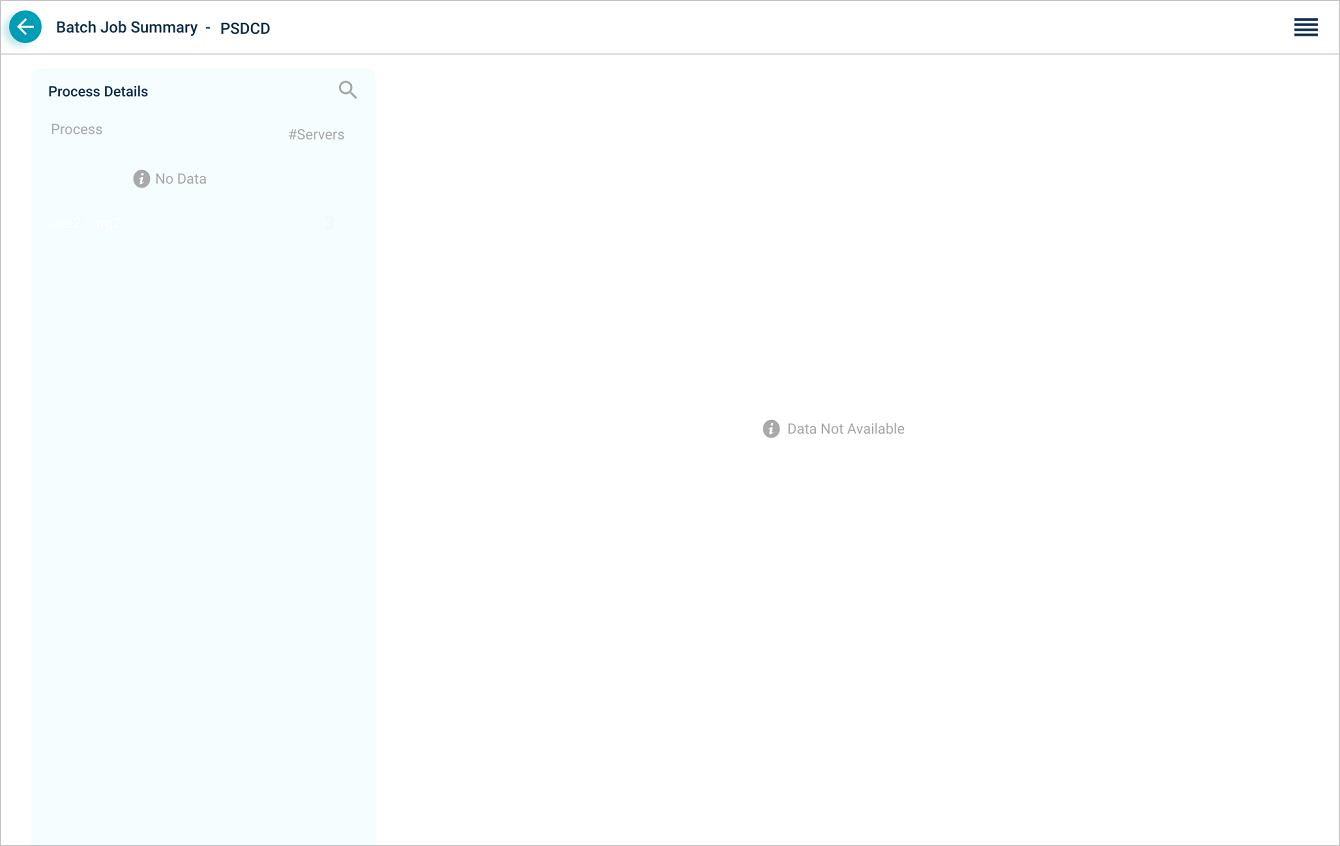
If a job has no processes, you see this view.
Historical data
Click Historical Data to see jobs from past dates. If you pick the present date manually, you see this view.
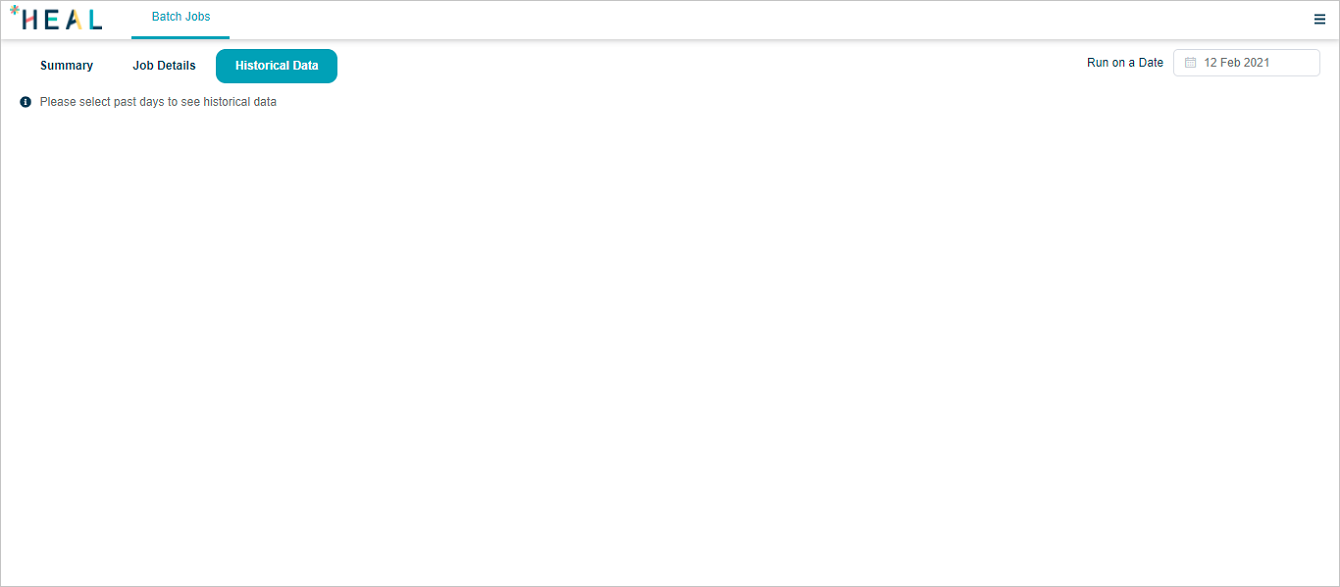
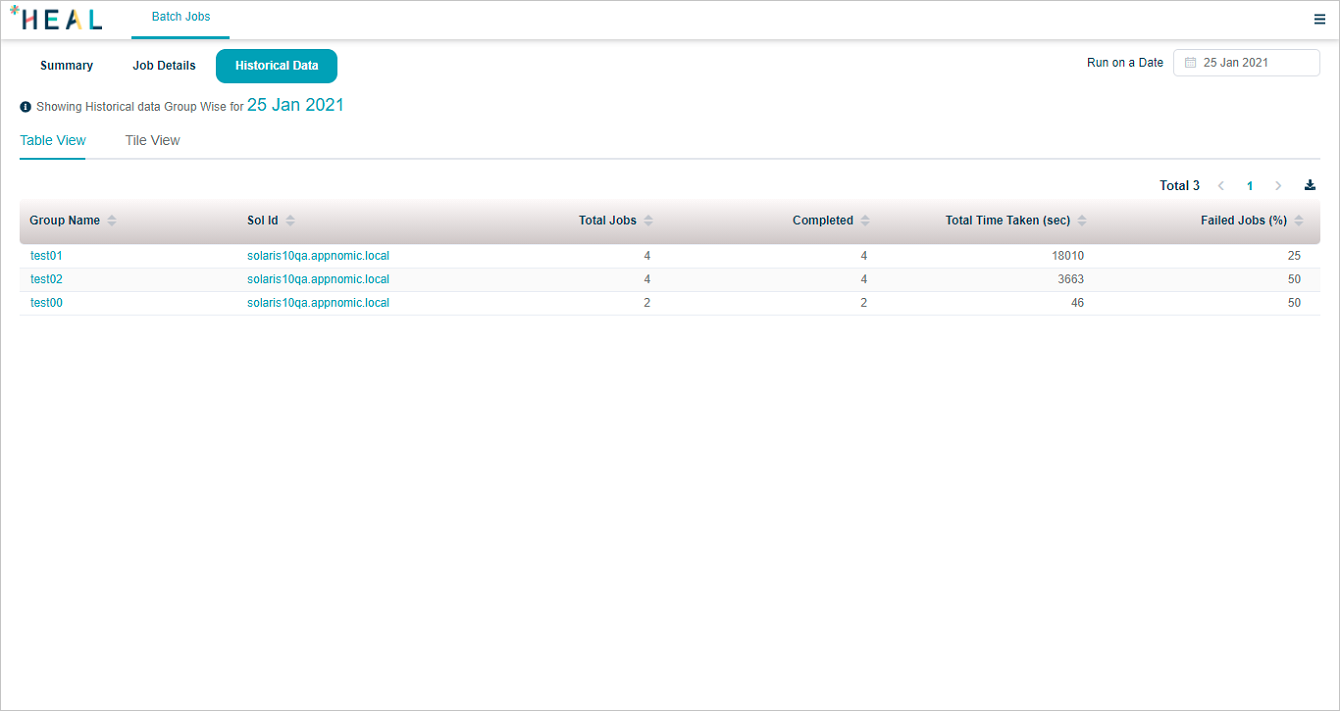
If you select a non-present run-on date in Job Summary and then open Historical Data, the date stays the same. Otherwise the historical view defaults to yesterday.
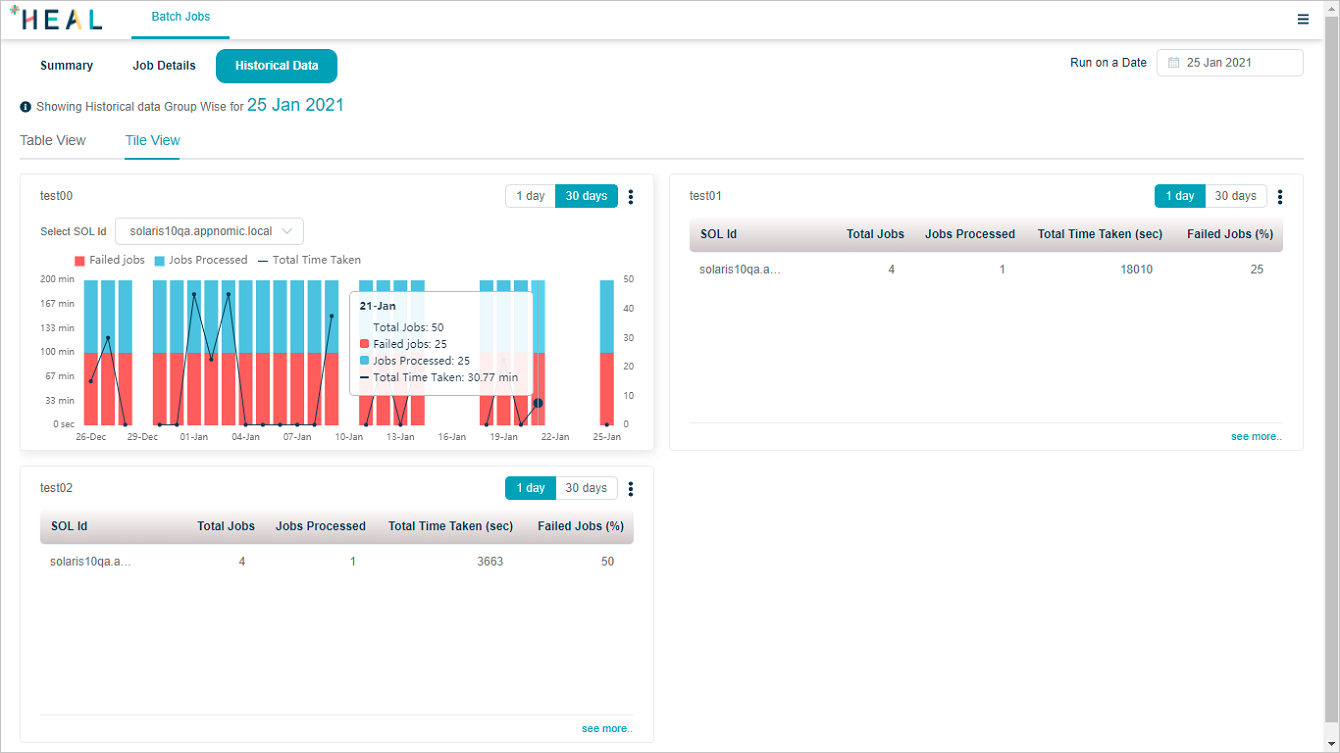
Two views: Table View and Tile View.
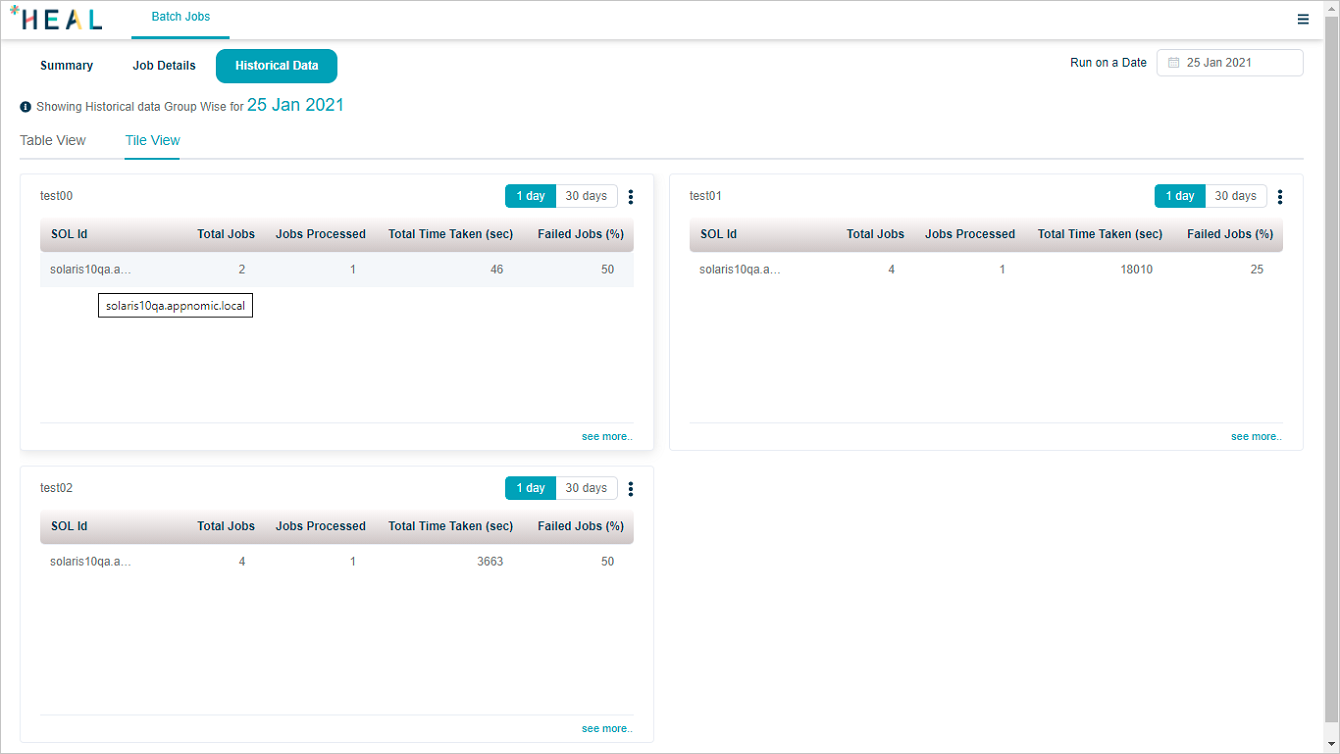
Tile view has one widget per defined group. Click 1 day for the last day relative to the run-on date.
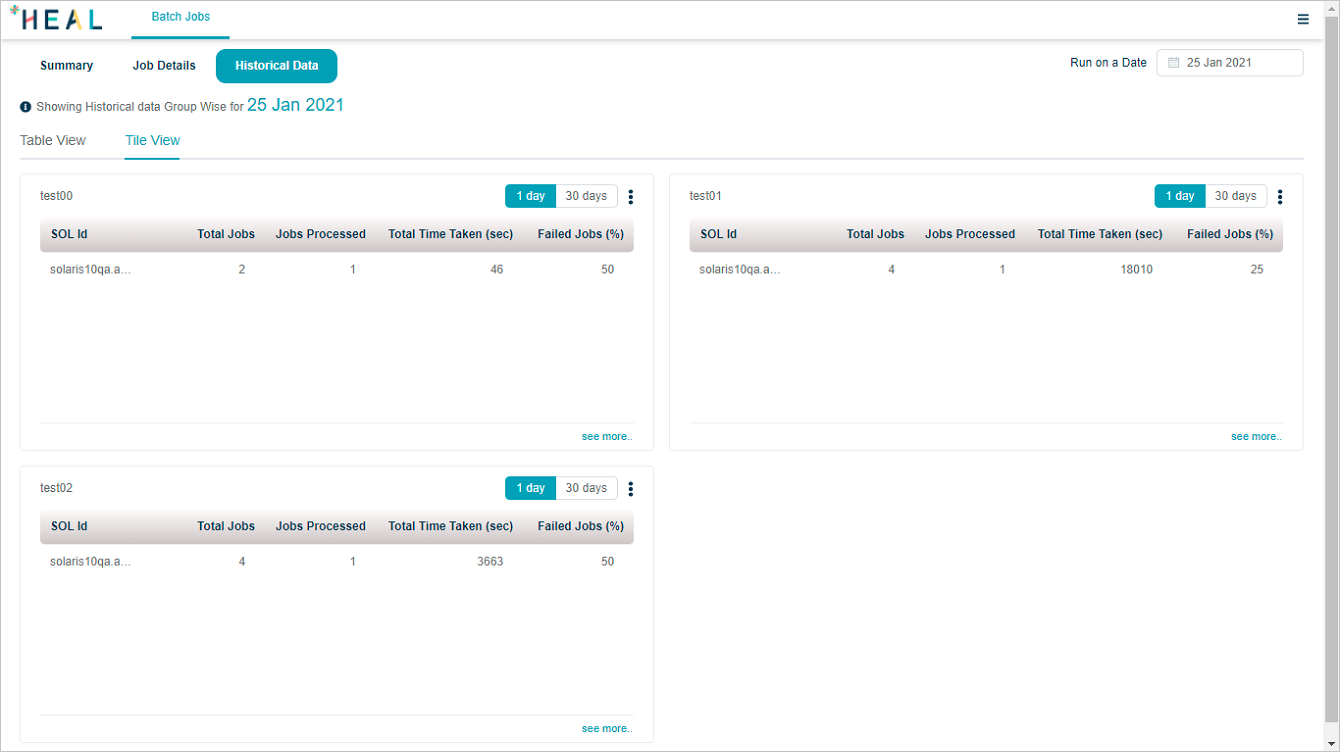
Hover a SOL ID for the full SOL name.
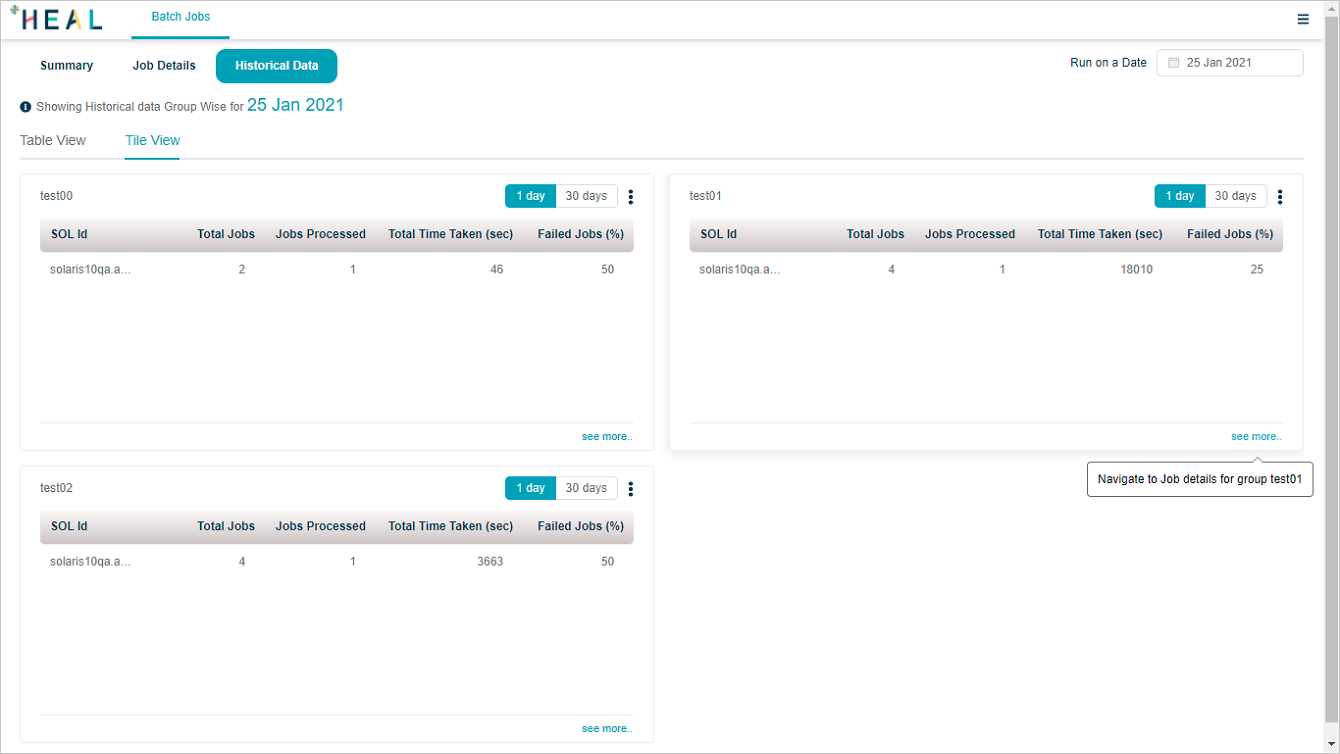
Click see more to open Job Details for that group.
Use the menu icon and Download as CSV file to save the group or server summary.
Click 30 days for the last 30 days relative to the run-on date.
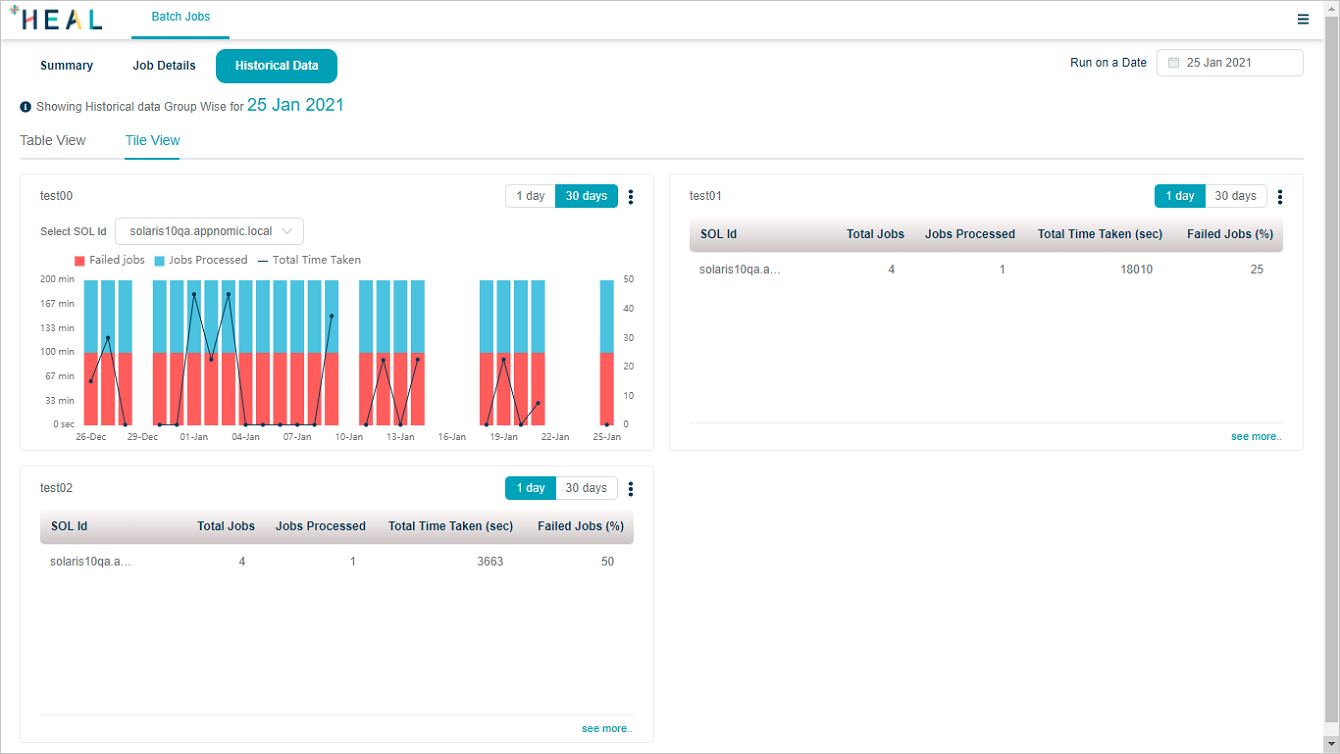
Hover any data point for that day’s details.
- Total Jobs. Total jobs that day.
- Failed Jobs. Failed jobs that day.
- Jobs Processed. Processed jobs that day.
- Total Time Taken. Time taken to process the jobs, in minutes.
Batch job alerts
HEAL raises a batch job alert when:
- A batch job does not start at its expected start time.
- A batch job takes longer than expected to complete (delay starting, slow run, or both).
- A batch job behaves abnormally compared to its baseline.
Next
- Viewing Application Health . the application-level dashboard.
- Signal Notifications . configure alerts.
- HEAL Health KPIs . monitor HEAL itself.
