
Search for answers or browse our knowledge base.


The Services tab is the at-a-glance view of every application HEAL is watching. Use it to spot which applications are healthy, which have warnings, and which need action right now.
What you can do here
- Check the health and performance of every configured application in one screen.
- Use color indicators to quickly tell critical issues from healthy ones.
- Click any application to open its full Application Health Summary.
Open the Services tab
Sign in to the HEAL UI, then click Services in the main navigation.
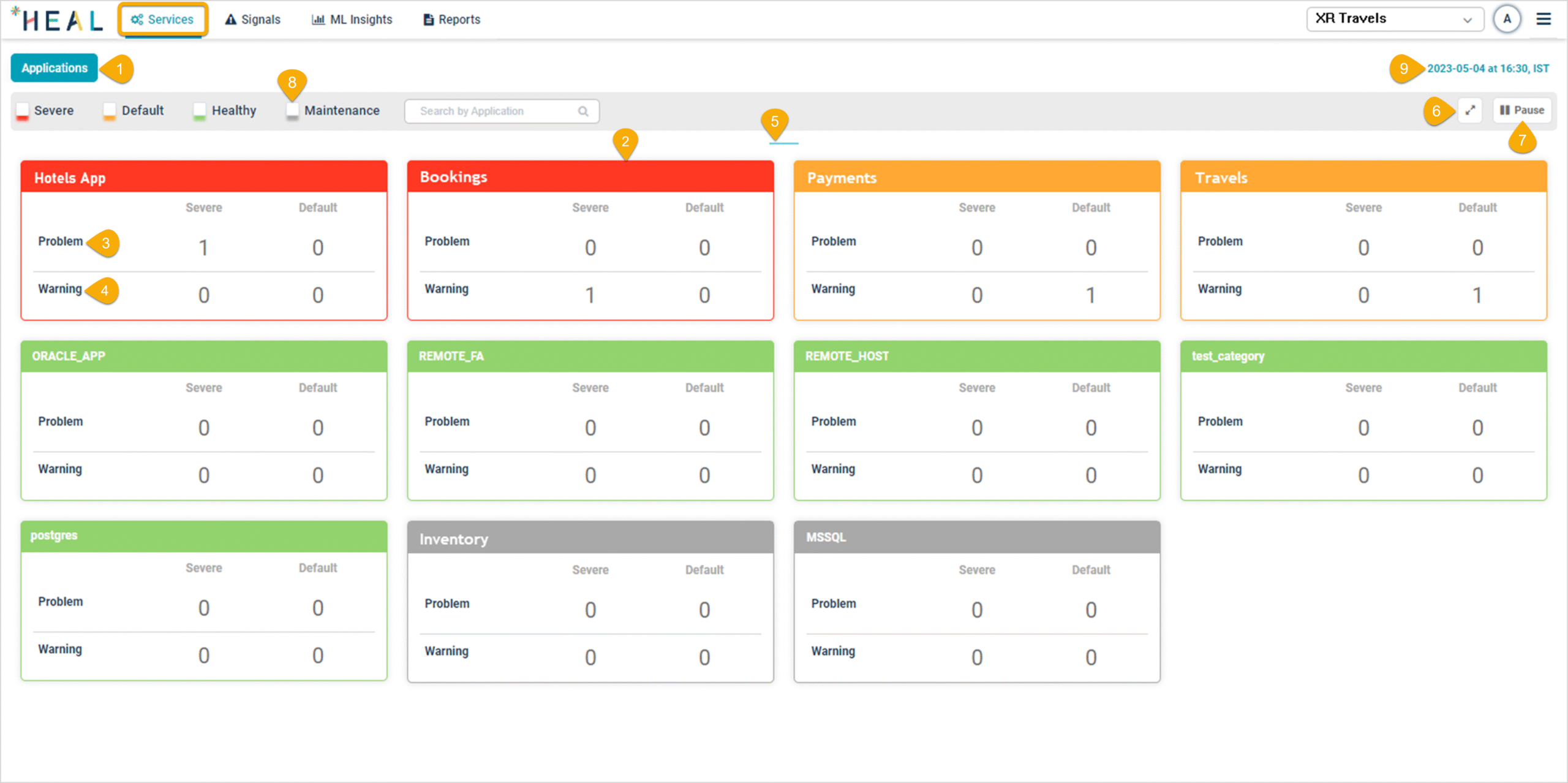
What’s on the screen
1. Applications. A group of services bundled together. Click Applications in the main menu to open the Application Health Dashboard, which lists every application you have access to.
2. Application pod. Each application appears as a pod. The color of the top line shows its status (see Status colors below).
3. Problem. The count of active Severe and Default problems on the application. Click anywhere on the pod to open the Application Health Summary.
4. Warning. The count of active Severe and Default warnings on the application. Click the pod to drill in.
5. Horizontal scrolling. Click and drag inside the content area to scroll across pods that go beyond the visible width.
6. Full screen mode. Click the icon to expand the view. Press Esc to exit.
7. Pause and play. Pods are shown in a carousel, twelve per page. Click play to start the auto-rotation. Click pause to stop it.
8. Application status filter. Click a status box to show only applications in that state.
9. Just-in-time snapshot. The timestamp on the screen is the moment the data was captured.
Status colors
Each pod’s top line uses one of four colors. Hover over a pod to see the same meaning in a tooltip.
- Red. Severe signal. Critical problem. Needs immediate attention.
- Yellow. Default signal. Potential issue worth a look.
- Green. No active signals. Healthy.
- Gray. Application is under planned maintenance.
Next
- Application Summary . the per-application drill-down screen.
- Getting Started . log in and find your way around.
- Accessing HEAL UI . first login walkthrough.
