
How Can We Help?
Search for answers or browse our knowledge base.


Reset your HEAL UI password by email if you forgot it. The flow is self-service, no admin ticket needed.
Before you start
- The Forgot Password feature is on in the Keycloak Administration Console.
- SMTP is set up so Keycloak can send reset emails.
- Your registered email address is current and you can open it.
Reset your password
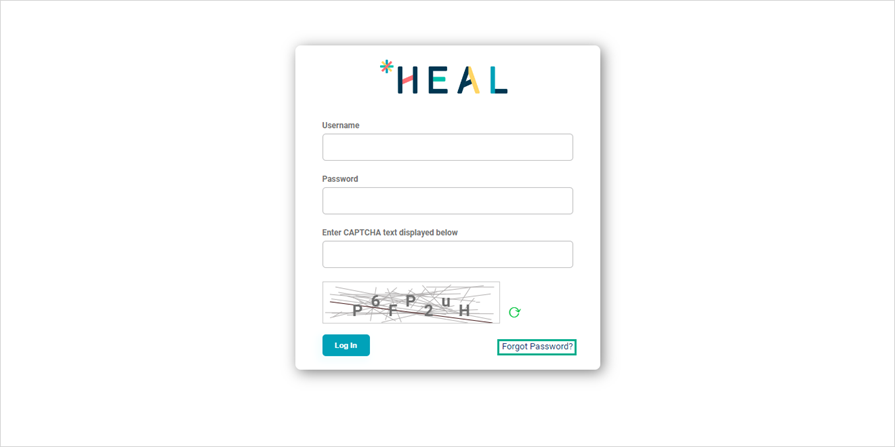
1. On the HEAL UI login page, click Forgot Password?
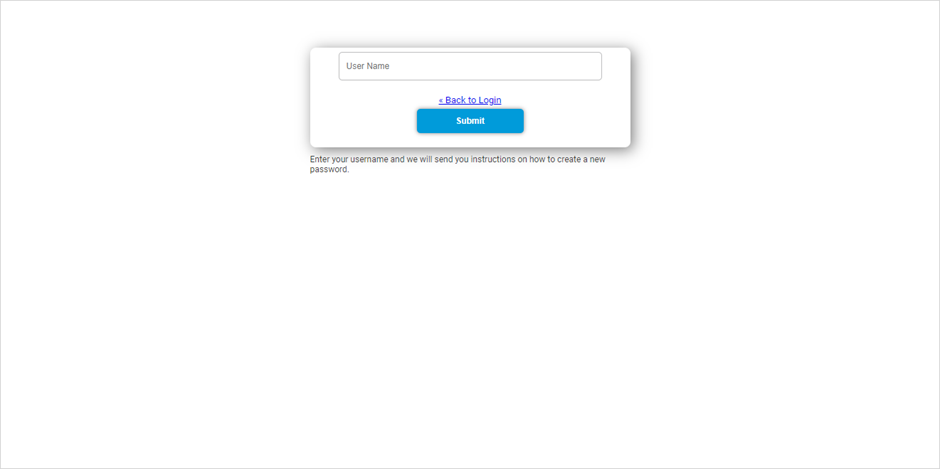
2. Enter your HEAL UI username and click Submit.
3. Open the Reset Password email in your inbox. Click Link to reset credentials.
Heads up. The reset link is valid for 15 minutes only.
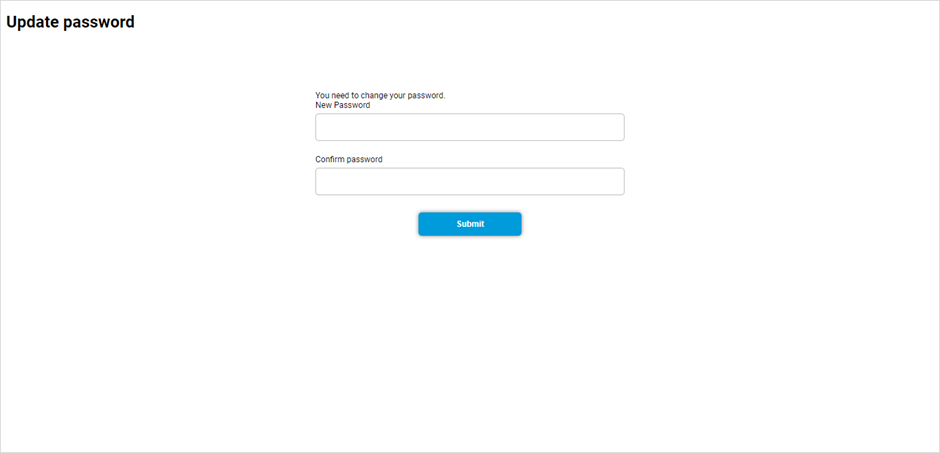
4. On the Update Password page, enter and confirm your new password. Click Submit.
5. You will see “Your account has been updated.” Log in with the new password.
Password rules
- Different from your last three passwords.
- At least five characters.
- At least one uppercase letter.
- At least one special character.
- At least one digit.
If reset fails
- No “Forgot Password?” link. The feature is off in Keycloak. Ask your admin to enable it under Realm Settings > Login.
- Email not received. Check spam first. Then ask your admin to verify SMTP and your registered email.
- Reset link does not work. The 15-minute window has expired. Restart the flow.
- New password rejected. Review the password rules above.
- “User not found.” Check with your admin for the correct HEAL username.
Next
- Changing Password . rotate your password from My Profile.
- Accessing HEAL UI . log in walkthrough.
- Keycloak Administration Console . admin setup for password recovery.
