
How Can We Help?
Search for answers or browse our knowledge base.


The HEAL UI is the main dashboard for all monitoring, signals, reports, and admin work. This page shows how to log in for the first time.
Before you start
- HEAL is installed and the UI service is running.
- You have a HEAL UI username and password from your admin.
- If your setup needs it, the HEAL server IP is in your local
/etc/hosts.
Log in
1. Open the HEAL UI in your browser.
https://<HEAL_IP>:<HEAL_Port>/heal-ui-service/
Replace <HEAL_IP> with the HEAL server IP and <HEAL_Port> with the UI port.
2. Enter your username and password.
3. Type the CAPTCHA shown below the field.
If the text is unclear, click the refresh icon next to the CAPTCHA.
4. Click Login.
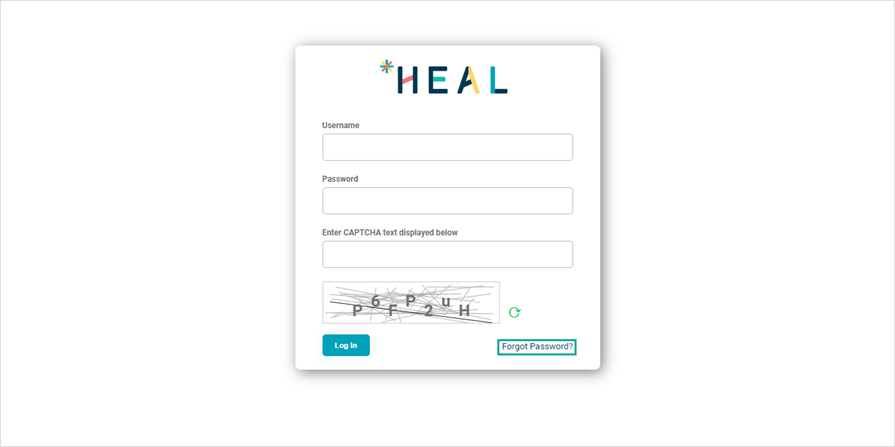
Heads up. Three failed login tries lock the account. Use Forgot Password or contact your admin to unlock it.
If login fails
- Page does not load. Check VPN, ping the HEAL IP, and verify
/etc/hosts. - SSL warning. Self-signed certificates are common in non-production. Confirm with your admin before accepting.
- Wrong CAPTCHA. Click refresh and try again.
- Account locked. Reset via Forgot Password or ask your admin to unlock it in Keycloak.
Next
- Getting Started . what to do after your first login.
- Changing Password . rotate your password.
- HEAL UI Security . how sessions are protected.
