
Search for answers or browse our knowledge base.


Root Cause Analysis (RCA) traces a performance problem back to the service that caused it. The Root Cause Walk shows the path from the impacted service to the root cause service.
What you can do here
- Identify the impacted service. The service experiencing the slowdown (an end-user-facing service like a web app or an internal service like a database).
- Identify the root cause service. The service causing the slowdown (a hardware failure, software bug, or network issue).
- View the RC walk. The path from impacted to root cause service that shows how the slowdown spread.
- Get more information about the root cause. Symptoms, impact, and the steps to fix it.
- Take corrective action. Fix the cause and prevent recurrence.
Open the Root Cause Walk
1. Open the Signals tab. See Navigating Signal Tab.
2. Click the signal ID you want to investigate, or click the link in an email notification.
3. On the Summary tab, click Root Cause Walk.
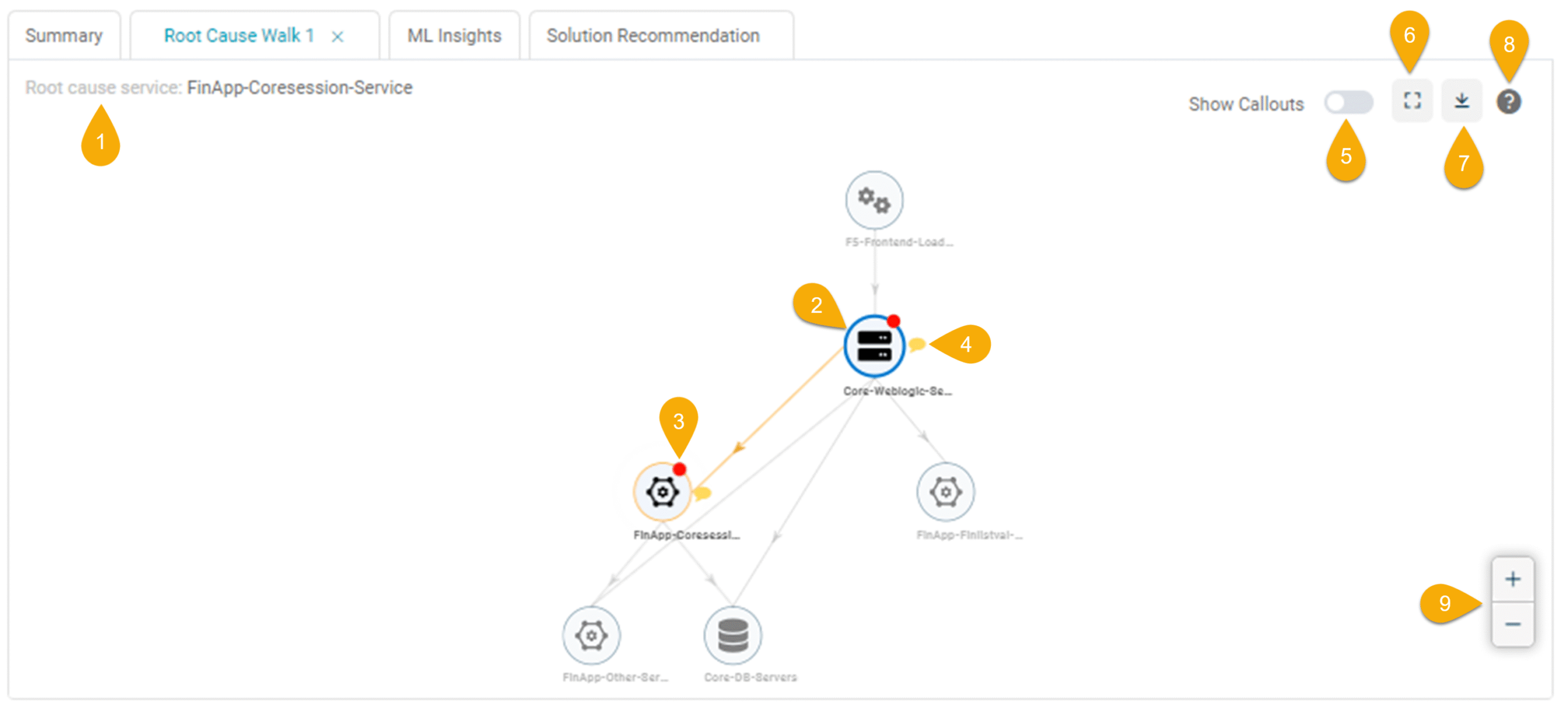
What’s on the screen
1. Root cause service. The service responsible for the signal.
2. Service. Click any service to open its Service Details screen.
3. Red dot. A red dot above the service circle marks a service with events.
4. Yellow message icon. Click to see the top three events on a service, ranked by relevance score. See Event ranking below.
5. Show Callouts. Switch on to display the top three load or behavior events for every service in the walk.
6. Zoom to fit. Resize the Service Dependency Map to fit the page after zooming.
7. Download. Export the SDM as a PNG.
8. Help. Open the legend that explains the symbols and colors.
9. Zoom in / Zoom out. Zoom to focus on details or zoom out for a wider view.
Reading the walk
The Root Cause Walk highlights:
- Both the root cause service and the impacted service.
- The path toward an entry-point service that may be affected.
- Services along that path (and their events) included in the Incident Timeline are highlighted in orange.
Click any service to open its Service Details screen.
The walk also drives signal generation:
- Affected services along the direct path of the original service get added to the existing signal.
- Affected services off the direct path create a new signal.
Event ranking
HEAL ranks events by relevance so IT teams can spot the most critical issues first. Events are shown in descending relevance order.
Relevance is built from three scores:
- Significance score (S). A weighted score for the event in relation to the incident. Built from event frequency, the number of systems or users affected, and business impact.
- Impact score (I). The likelihood that an event causes an incident. Built from event severity, urgency, and the resources available to fix it.
- Interestingness (N). How interesting the event is in the context of the problem. Built from event frequency, affected systems or users, and business impact.
The weights for I, S, and N are learned by machine learning so HEAL can rank events more accurately over time.
Show top service events
1. Click the yellow message icon on a service to see the top three events for that service ranked by relevance.
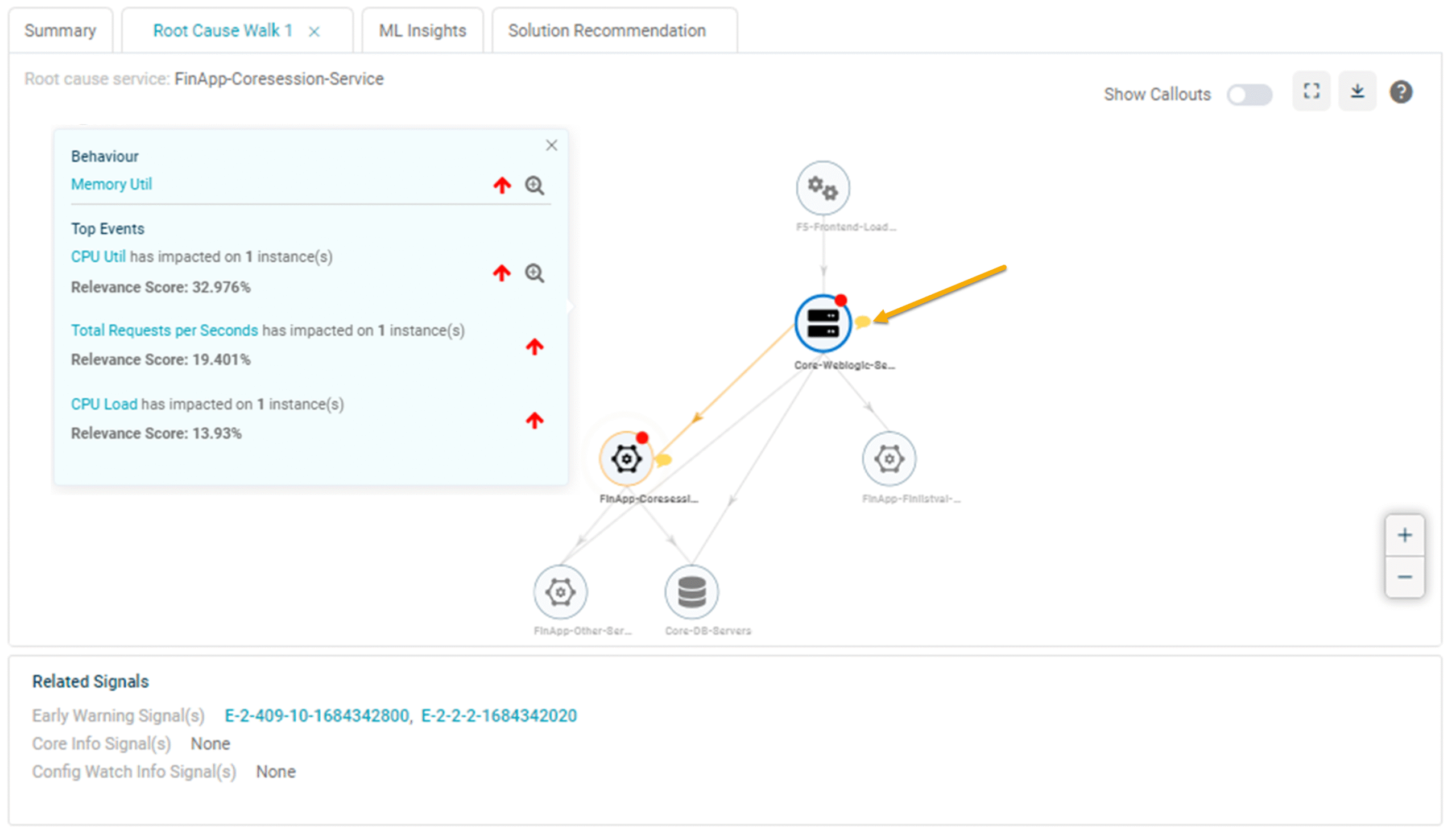
2. Switch on Show Callouts to display the top three events for every service in the walk.
Each callout includes:
- The top three events on the service. They can be load, behavior, or a mix.
- The KPI name with the highest relevance score, shown above the events. Click the KPI name to open Service Details.
- A red up or down arrow next to the KPI name. Up means the upper threshold was breached, down means the lower threshold.
- A zoom button to open the forensic details for that service. See Viewing Forensics.
Highlight service connections
Hover over any service circle to highlight its inbound and outbound links.
Legend
Click Help to see the symbols and colors used in the walk.
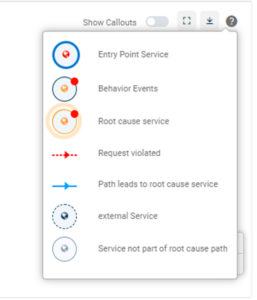
- Entry point service. The service where transactions begin.
- Behavior events. Unusual activity or anomalies on a service.
- Root cause service. The service responsible for the signal.
- Request violated. A service where a request crossed a threshold.
- Path leads to root cause. Marks the path to the root cause service.
- External service. A service outside the application that interacts with it.
- Service not part of root cause path. A service not on the direct path to the root cause.
Next
- View Solution Recommendation . suggested fixes for the root cause.
- View ML Insights . top metrics inside a signal.
- View Problem Report . open one Problem.
