
How Can We Help?
Search for answers or browse our knowledge base.


Change your HEAL UI password from the My Profile page. The change takes less than a minute.
Before you start
- You can log in to the HEAL UI with your current password.
- The Forgot Password feature is on in Keycloak (admin task).
- SMTP is set up in Keycloak so reset emails can be sent.
Change your password
1. Log in to HEAL UI with your current username and password.
2. Click the menu icon in the top-right corner and select My Profile.
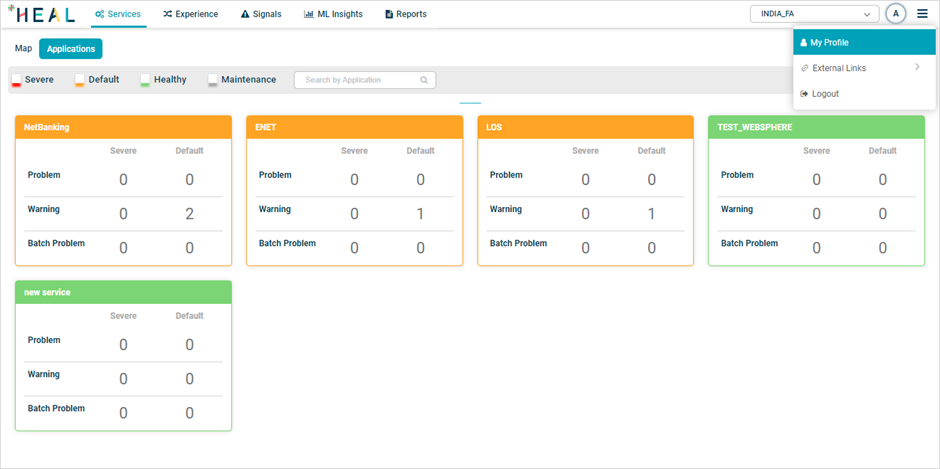
3. The Change Password form opens. Enter your current password, then your new password twice.
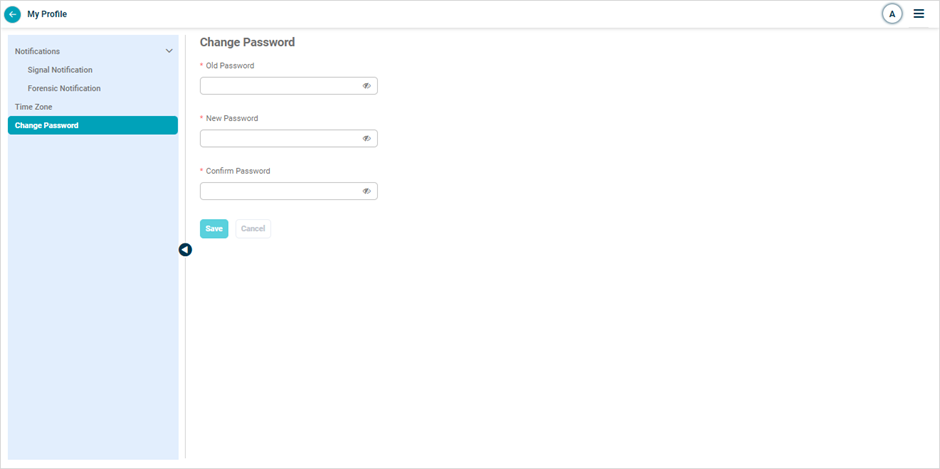
4. Click Save.
Password rules
Your new password must meet all of these.
- Different from your last three passwords.
- At least five characters.
- At least one uppercase letter.
- At least one special character.
- At least one digit.
If save fails
- Save button is disabled. The new password fails the policy check. Review the rules above.
- “Password recently used” error. Pick a fresh password that does not match your last three.
- My Profile menu missing. Your role lacks profile access. Contact your admin.
Next
- Forgot Password . reset by email if you are locked out.
- HEAL UI Security . how sessions are protected.
- Keycloak Administration Console . admin setup for password recovery.
