
Search for answers or browse our knowledge base.


The Keycloak Administration Console is the central tool for HEAL identity and access management. This page covers how to open the console and configure the two most common settings, Forgot Password and SSO Session Idle.
Before you start
- Admin credentials for the Keycloak realm used by HEAL.
- Keycloak service is running and reachable from your browser.
- SMTP server details if you plan to enable email-based password reset.
Open the console
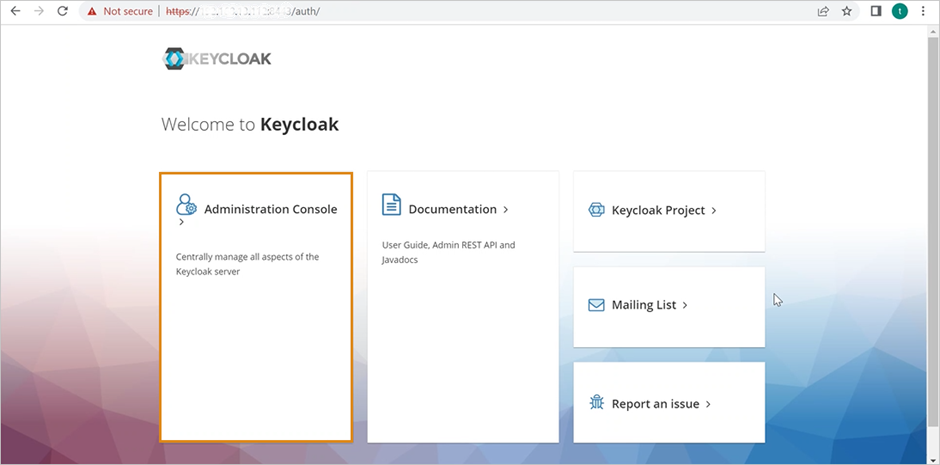
1. Go to the Keycloak URL in your browser.
2. Click Administration Console.
3. Log in with your admin credentials.
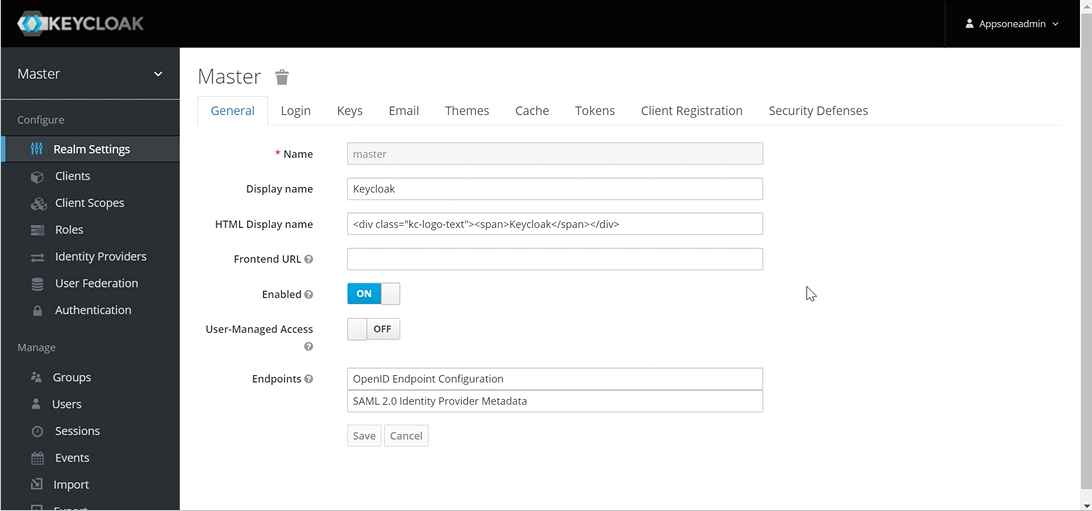
The Master page appears.
Enable Forgot Password
This adds a “Forgot Password?” link to the HEAL login page so users can reset by email.
1. Go to Realm Settings > Login.
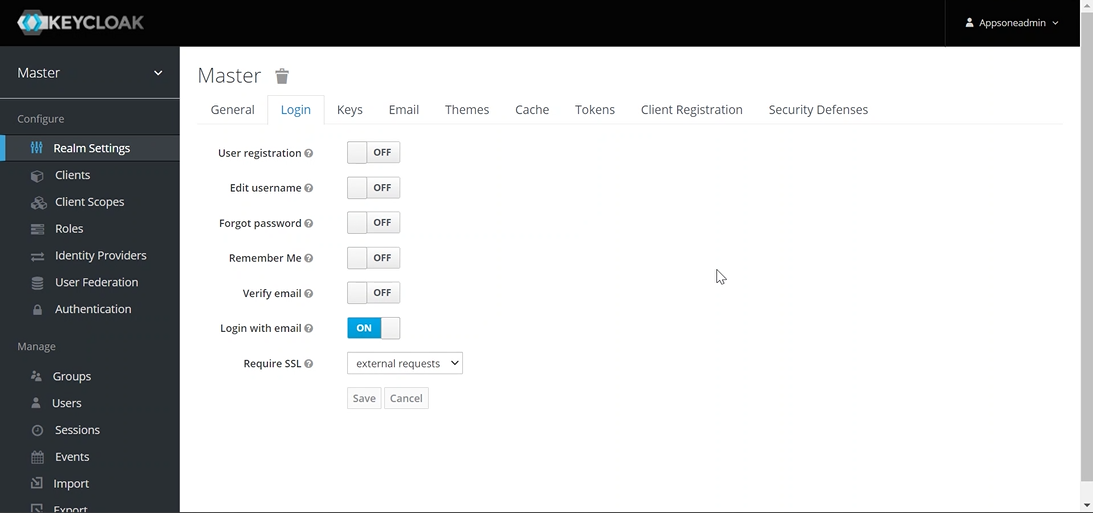
2. Toggle Forgot Password to ON.
3. Save.
4. Configure SMTP under Realm Settings > Email so reset emails can be sent.
Set the session timeout
SSO Session Idle protects against unauthorized access on idle workstations. It applies to both the HEAL Control Center and the HEAL UI.
1. Open the Tokens tab in Realm Settings.
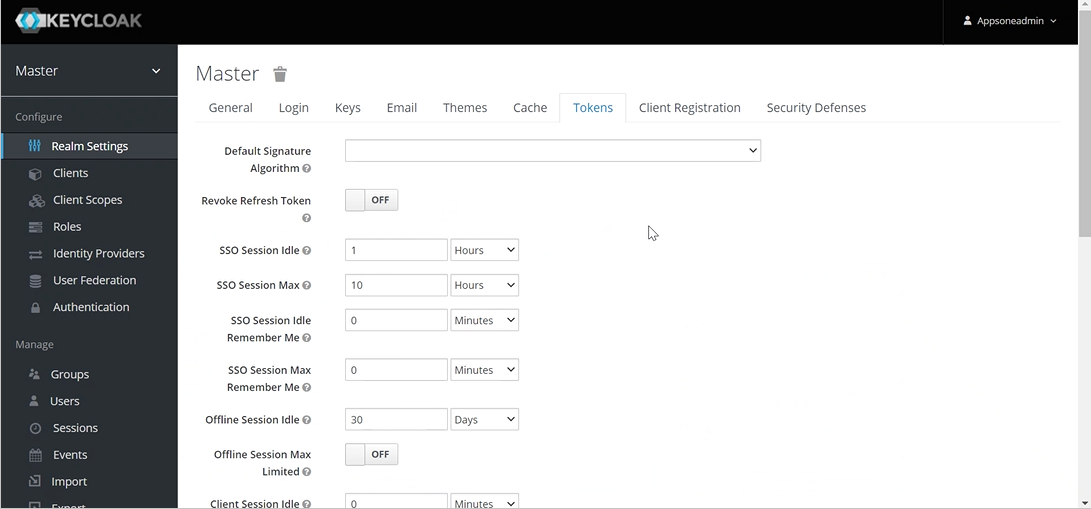
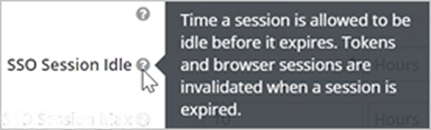
2. Find SSO Session Idle. Hover for a tooltip that explains the setting.
3. Pick the duration from the dropdown (Minutes, Hours, or Days).
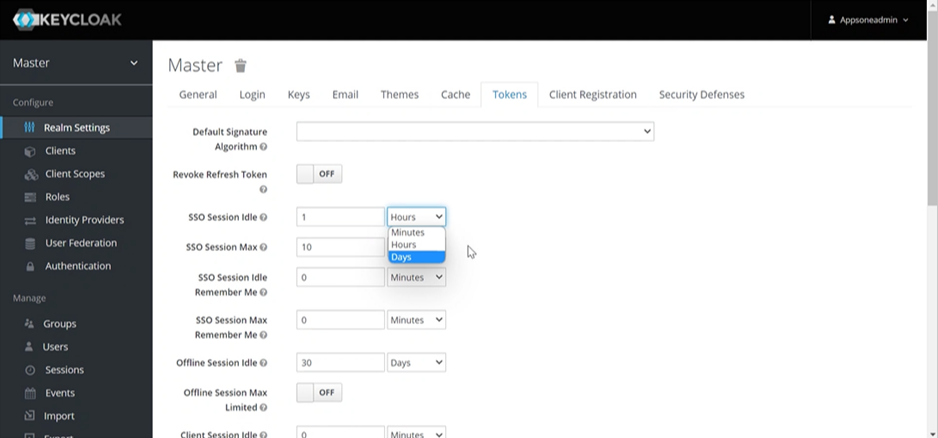
4. Save. Verify by logging in to the HEAL UI and leaving the session idle.
Suggested values
- SSO Session Idle. 15 to 30 minutes. Balances security with on-call productivity.
- SSO Session Max. 10 to 12 hours. Forces re-login once per shift.
- Access Token Lifespan. 5 to 15 minutes. Short-lived tokens limit replay risk.
If something is off
- Cannot reach the console. Check the URL and the Keycloak service status on the host.
- “Forgot Password?” link not showing. Re-toggle in Realm Settings > Login. Confirm the realm matches the HEAL client.
- Reset emails not delivered. Test SMTP under Realm Settings > Email. Check the from-address and TLS settings.
- Timeout changes not applying. Clear cookies for the Keycloak domain and log in fresh.
- Users get logged out too quickly. Increase SSO Session Idle in small steps and retest.
Next
- HEAL UI Security . how sessions are protected.
- Forgot Password . user-facing reset flow.
- Changing Password . user-facing rotation flow.
