
Search for answers or browse our knowledge base.


A HEAL application can include services running in different time zones. You can pick which time zone HEAL uses to show metrics, signals, and summaries.
Set your preferred time zone
1. Click the profile icon in the top-right corner and select My Profile.
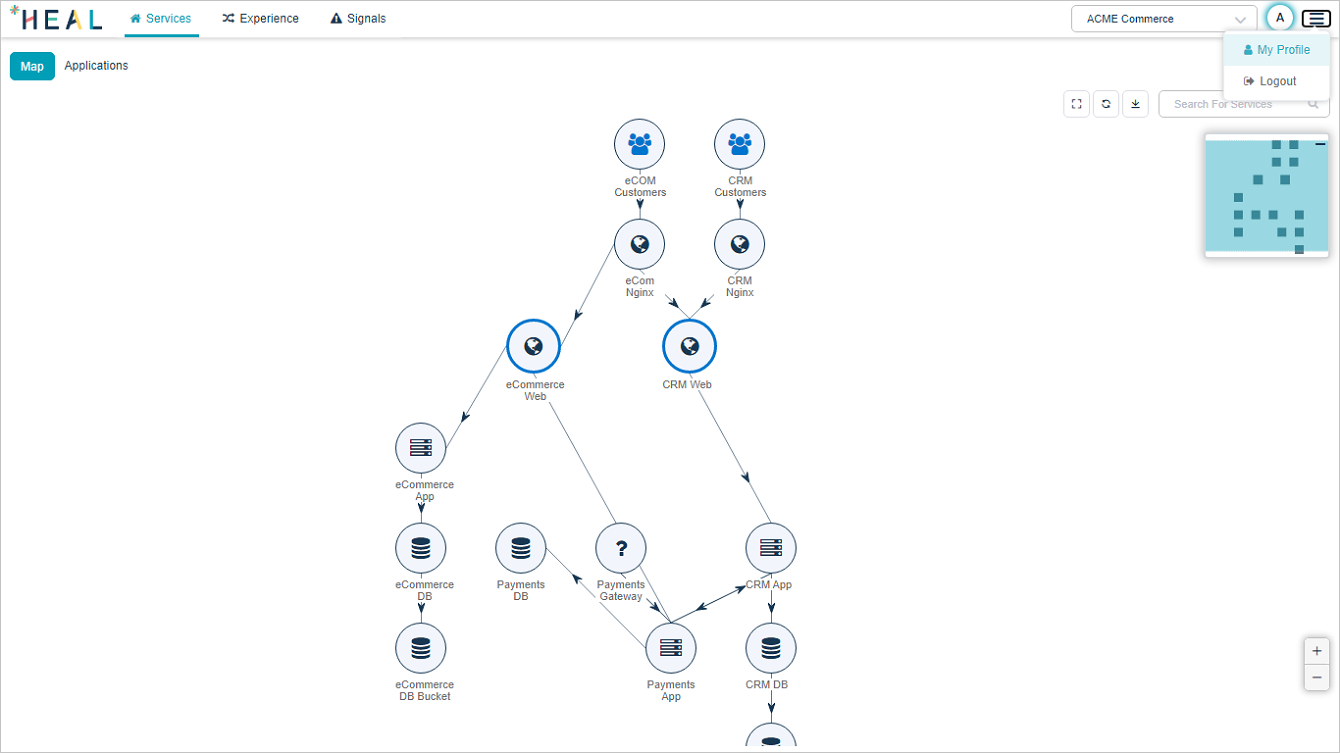
2. Open the Time Zone section. The My Preferred Time Zone dropdown lists every time zone. The first entry is the account default and applies to every new user.
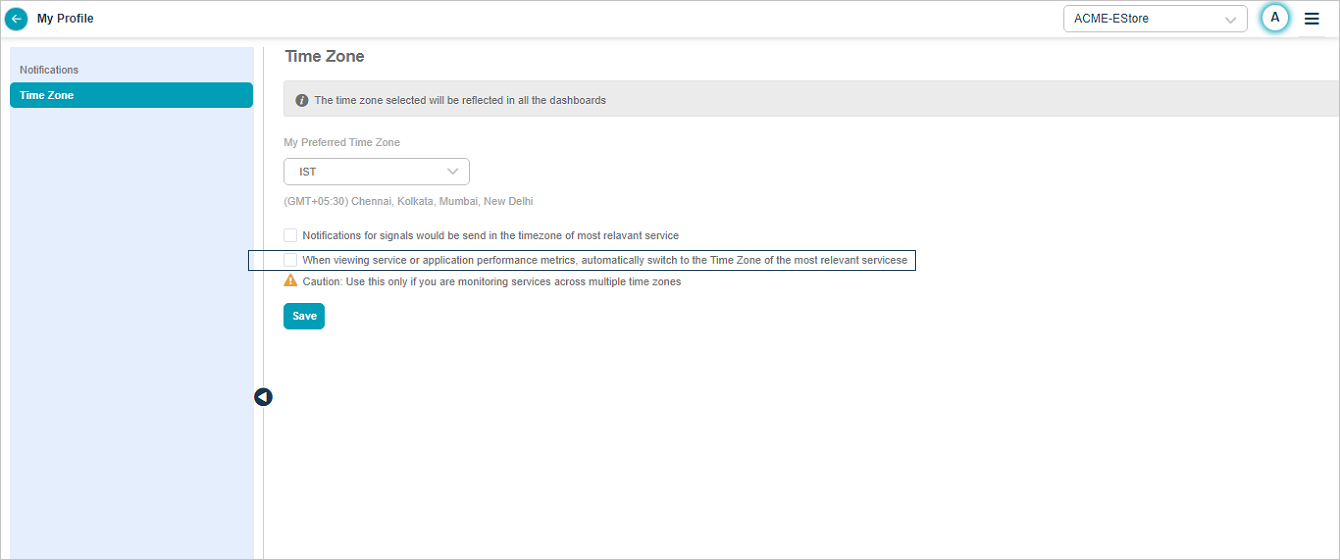
3. Pick your preferred time zone. It applies to every screen with time-series data.
- Service Details
- Signal Report (Problem and Early Warning reports)
- CXO Dashboard
- Application Summary
- Signals List
Auto-switch time zone
Turn on Auto switch time zone in the Time Zone pane. It is off by default.
When it is on, the screen switches to the service’s custom time zone in these cases:
- Loading Service Details for a service with a custom time zone.
- Opening a Warning whose root cause service has a custom time zone.
- Opening a Problem whose entry-point service has a custom time zone.
Switch time zone manually
You can change the time zone on the fly. The screen reloads with the new time zone, and the change holds for the current session. Your preferred time zone returns the next time you log in.
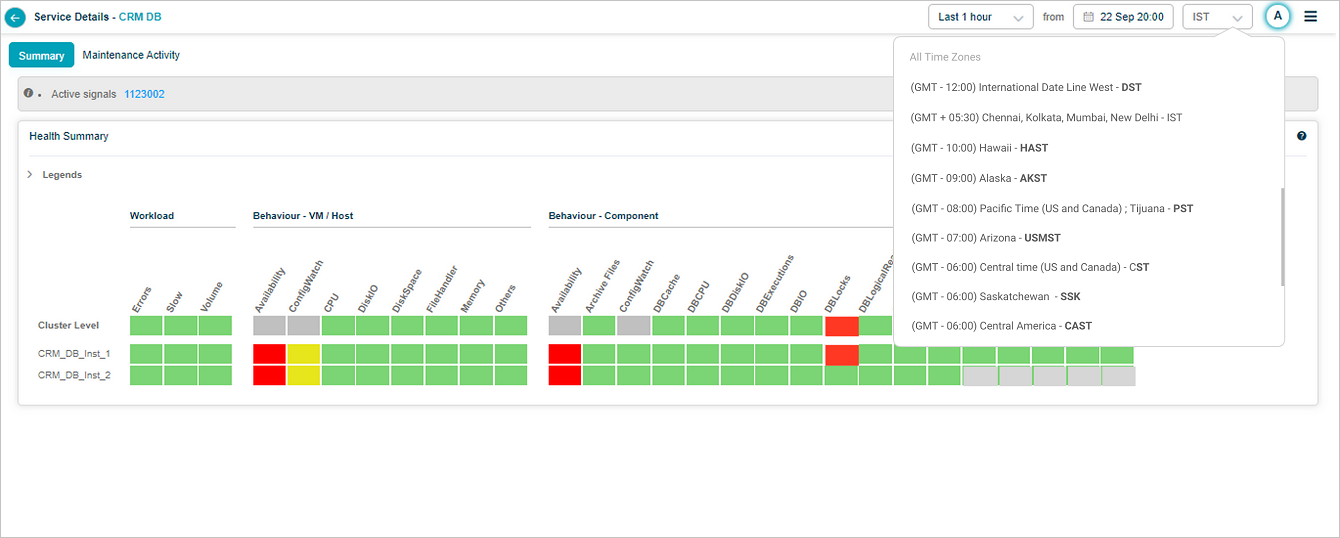
If a service has its own time zone in the database, switch to it from Quick Switch to or pick any zone from All Time Zones. Both options last for the current session.
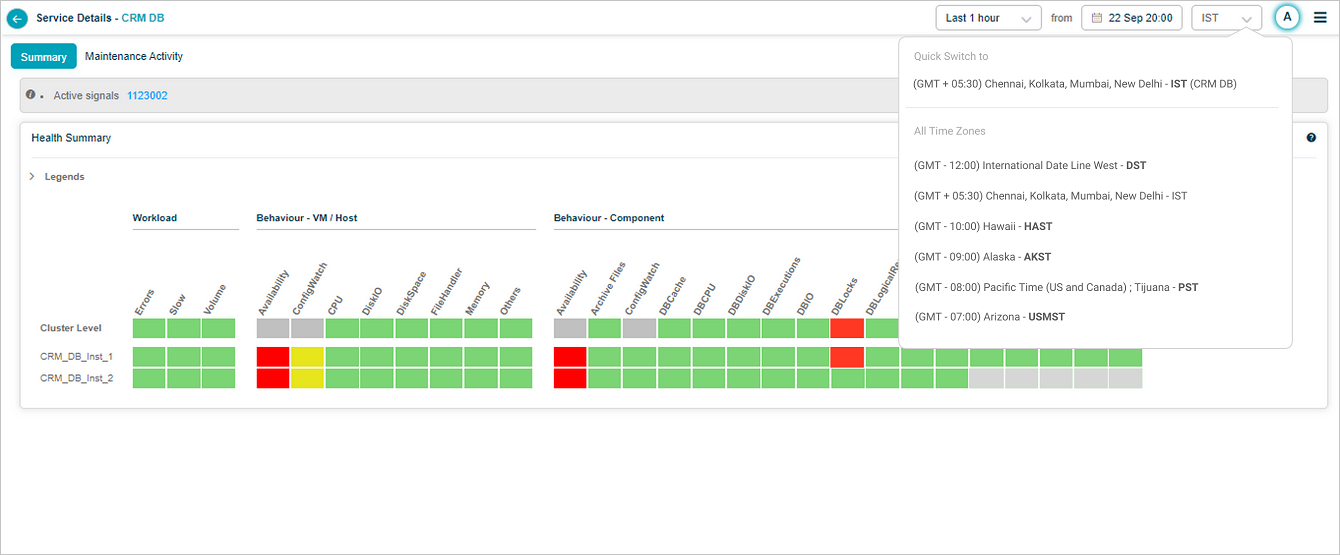
The active time zone shows in the top-right corner of any Signal report screen.
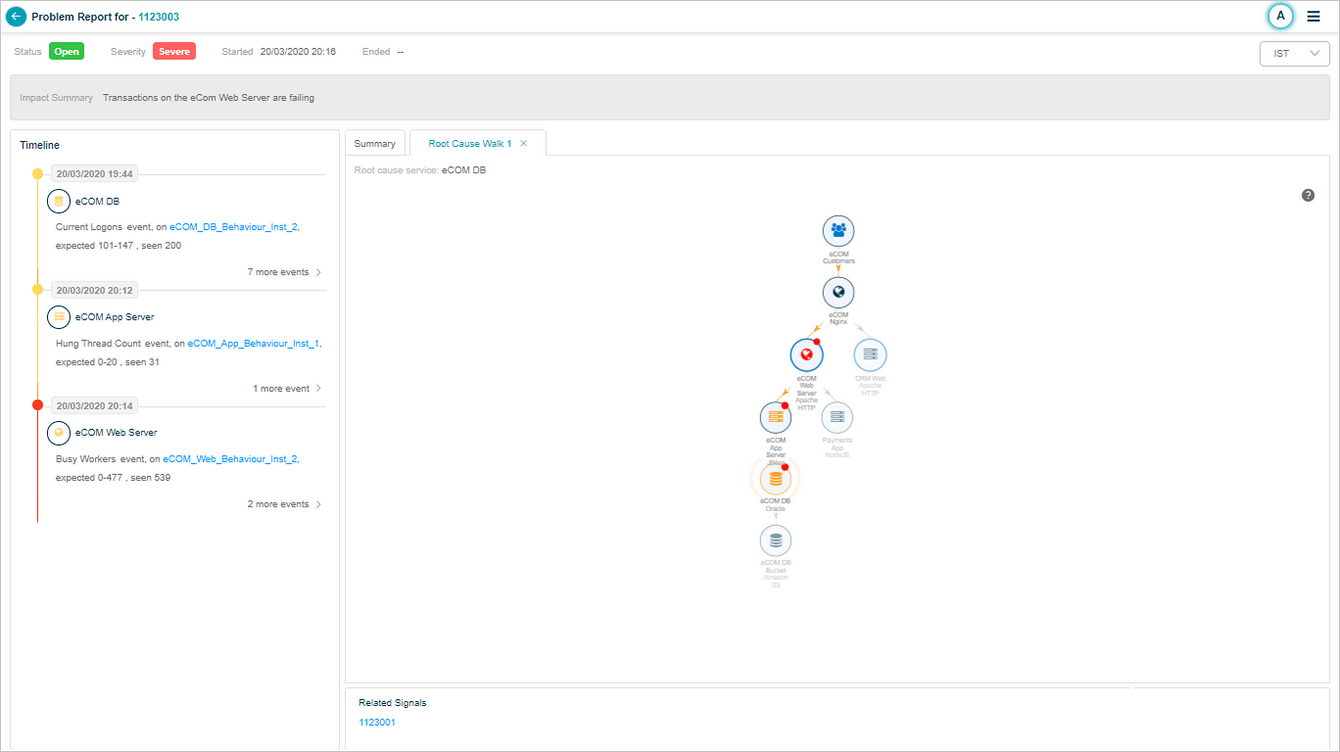
If a Signal spans multiple services and three of them have custom time zones, all three appear in Quick Switch to. Pick any one.

Auto-switch time zone in notifications
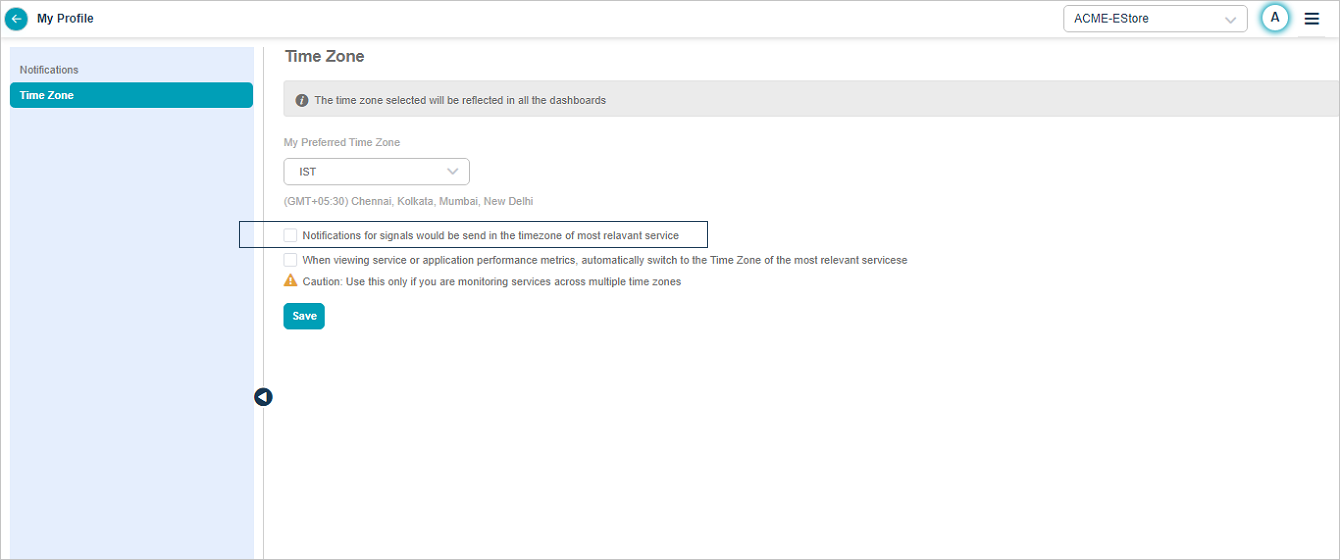
Turn on Auto switch time zone in notifications in the Time Zone pane. It is off by default.
When it is on:
- Problem notifications use the time zone of the entry-point service.
- Warning notifications use the time zone of the first service that began behaving abnormally.
Next
- Setting Date and Time . change the time range used by every screen.
- Navigating to the HEAL UI . main dashboard tour.
