
How Can We Help?
Search for answers or browse our knowledge base.
 Single PDF
 Bulk PDF
 Section
If you want to change your password for security reasons, reset it using the “Forgot Password” function.
[box type=”info”] To enable this function, perform the following steps in the Keycloak Administration Console:
- Activate the “Forgot password” feature: Navigate to Configure > Realm Settings > Login. Activating this feature will add a “Forgot Password?” link to the login page, which can be clicked to initiate the password reset process.
- Set up SMTP details: Navigate to Configure > Realm Settings > Email to configure the SMTP details. The proper configuration will allow Keycloak to send and receive password reset emails.[/box]
- Log into the HEAL UI with your existing username and password.
- Click the collapsed menu icon and select My Profile.
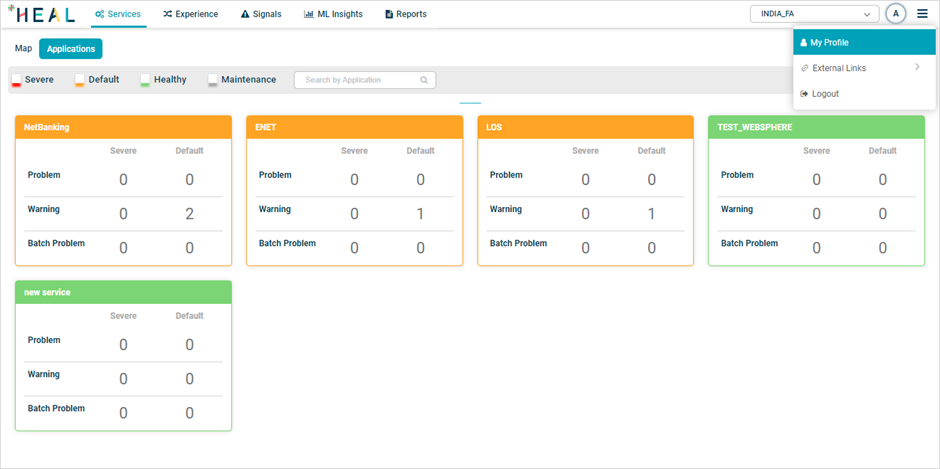
3. On the My Profile page, the Change Password form is displayed. Enter the necessary information and click Save.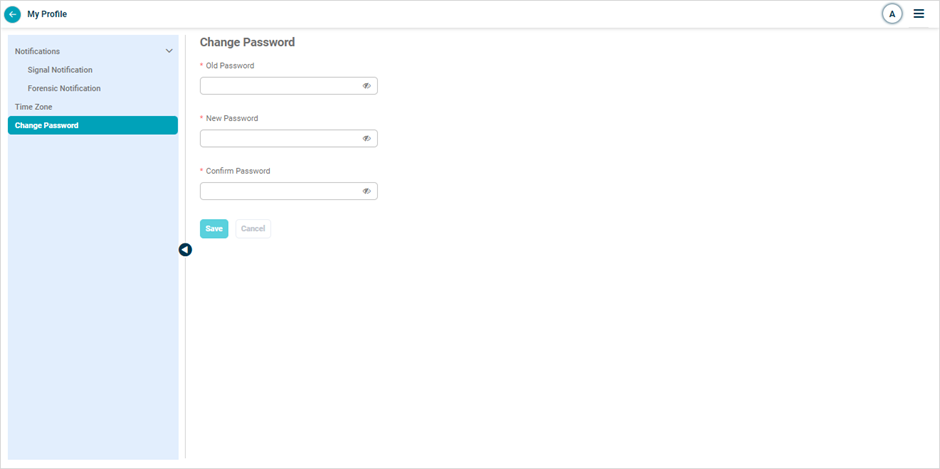
- It should not be one of the last three passwords used.
- It must contain at least five characters.
- It must include at least one uppercase character, one special character, and one digit.
