
How Can We Help?
Search for answers or browse our knowledge base.


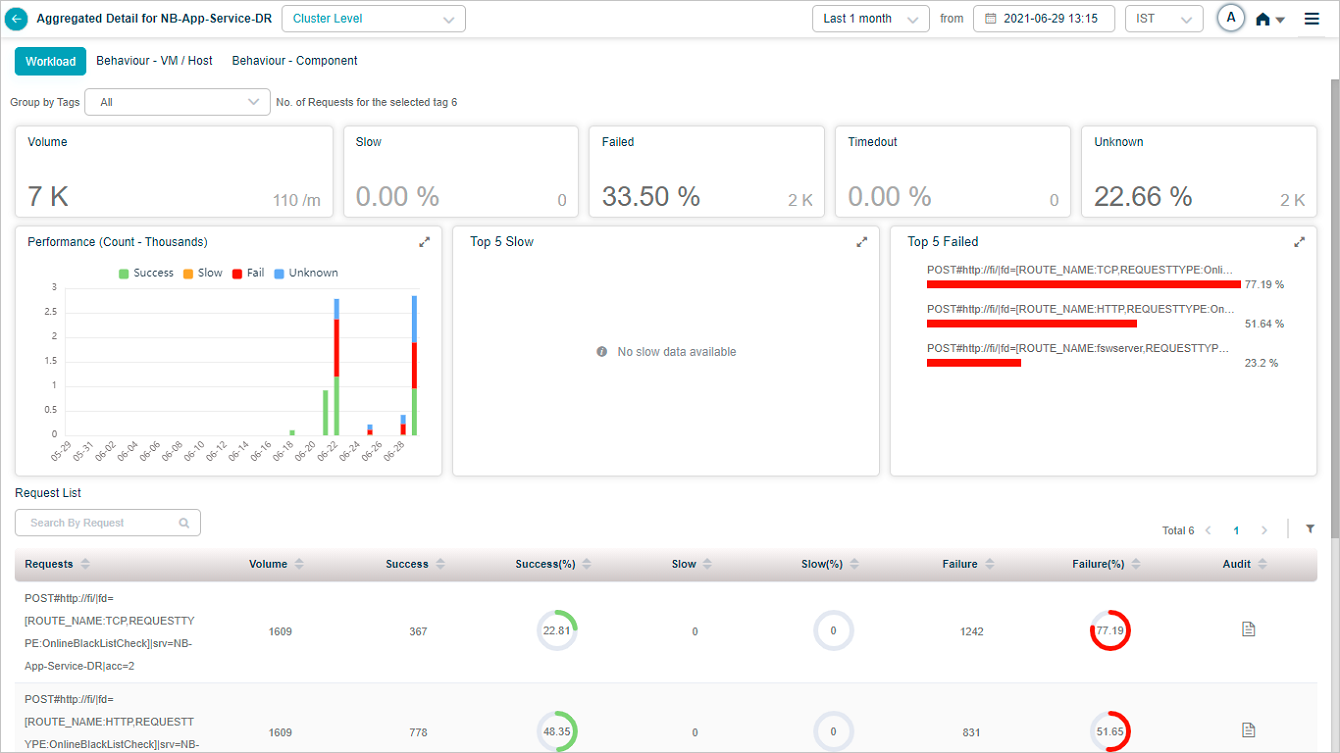
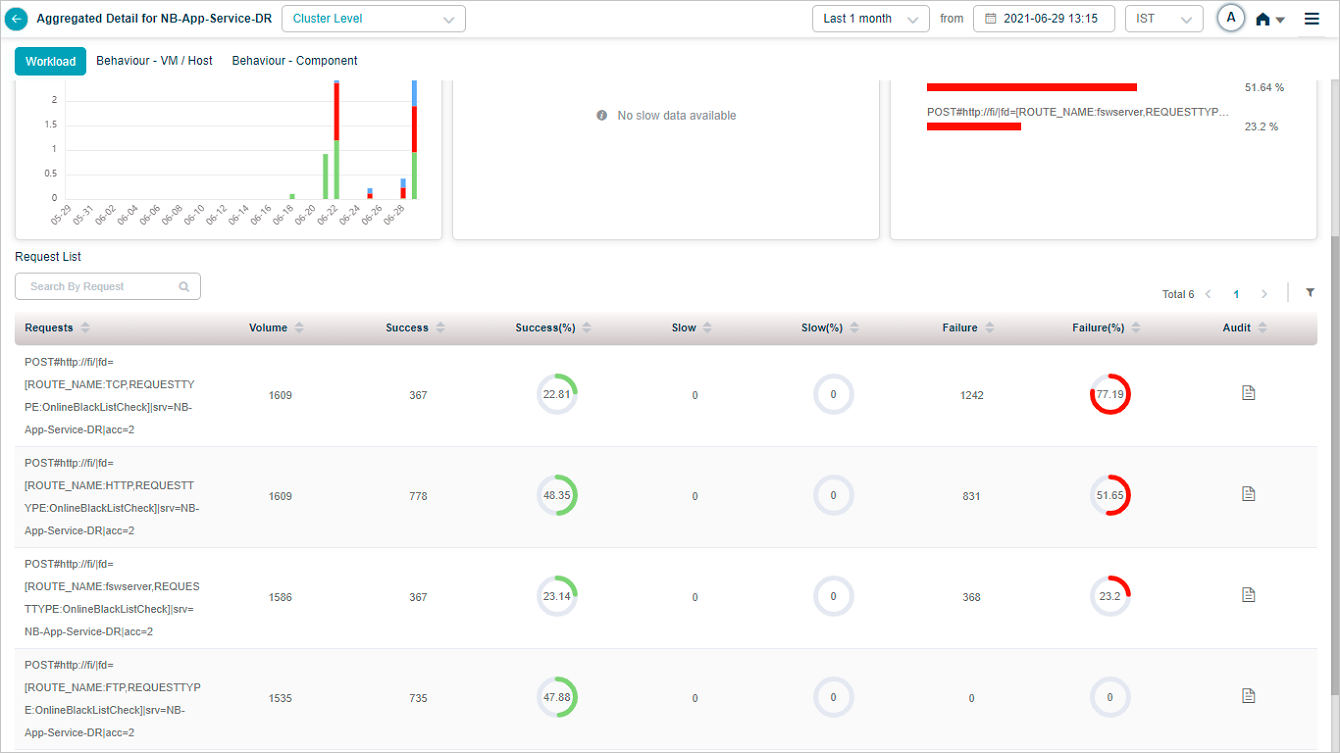
HEAL audits selected transactions and captures the extra headers in the post body. The Audit column on the Workload screen exposes that data for each transaction.
View transaction audit
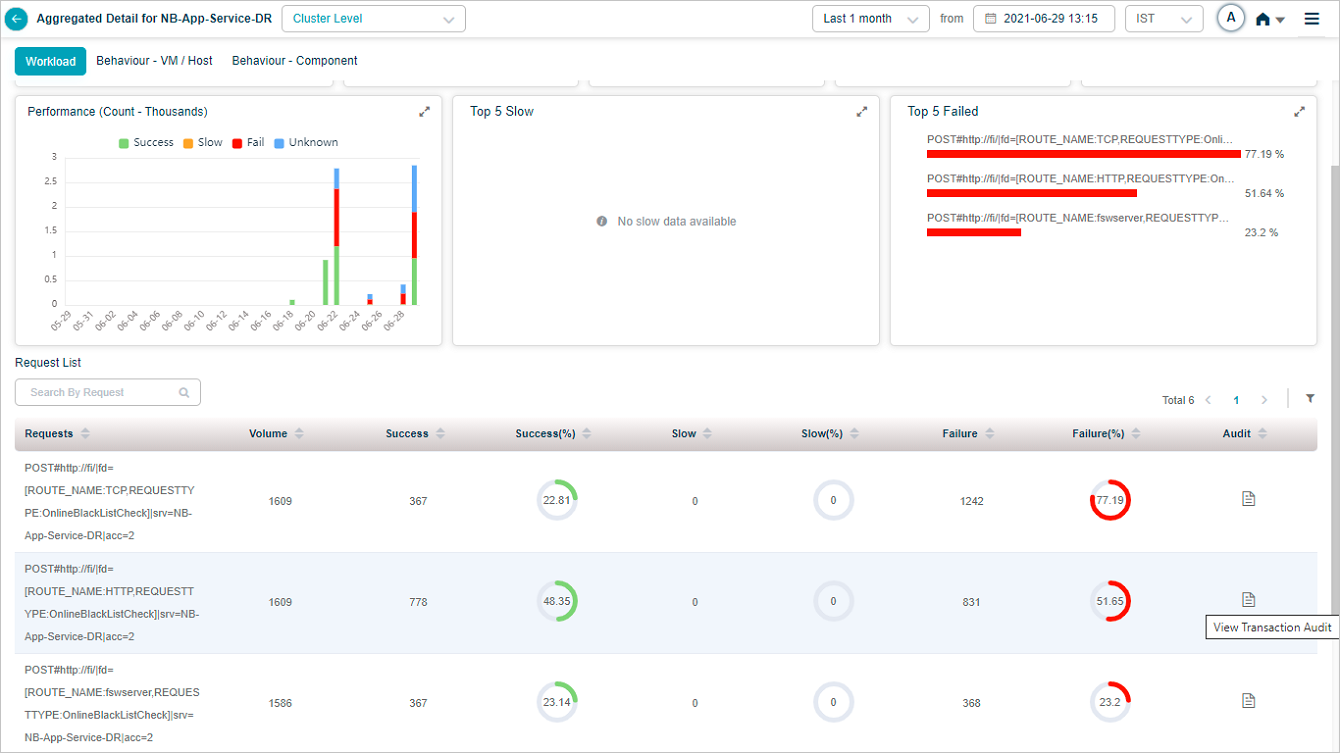
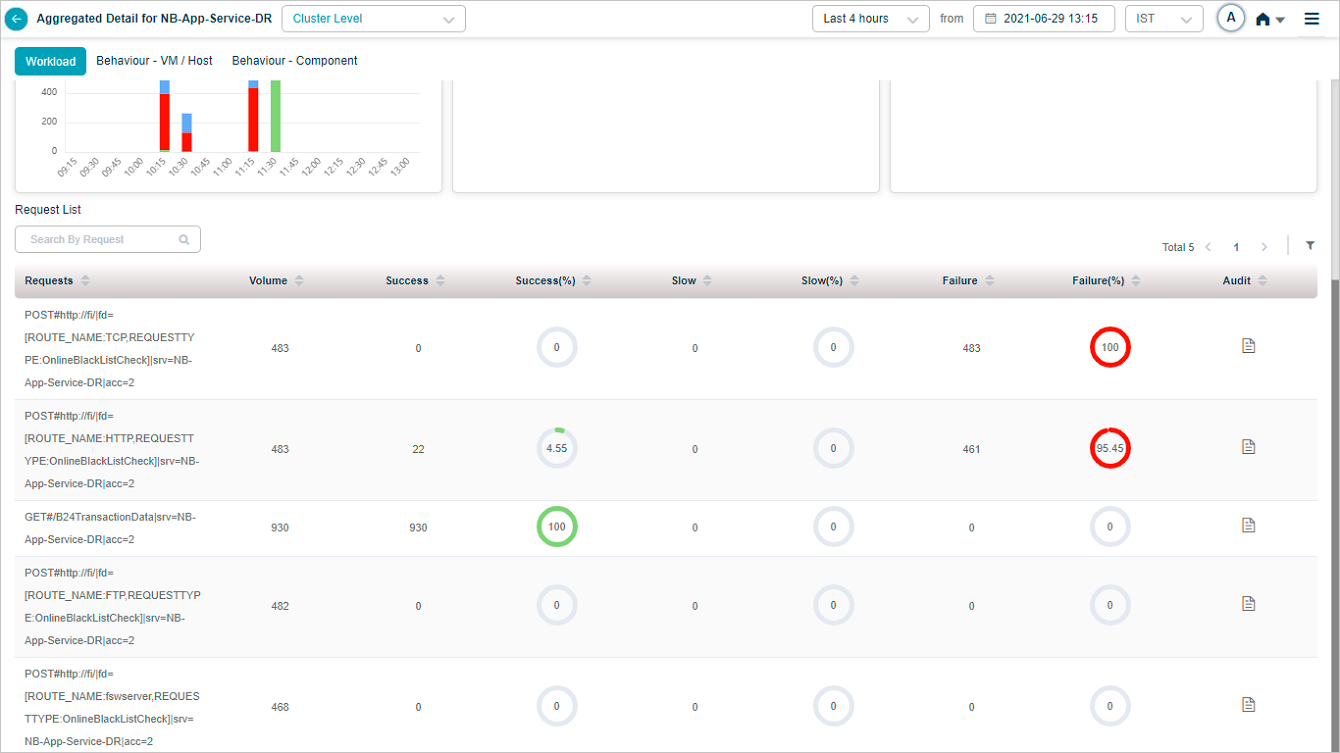
Hover the icon in the Audit column. The View Transaction Audit option appears.
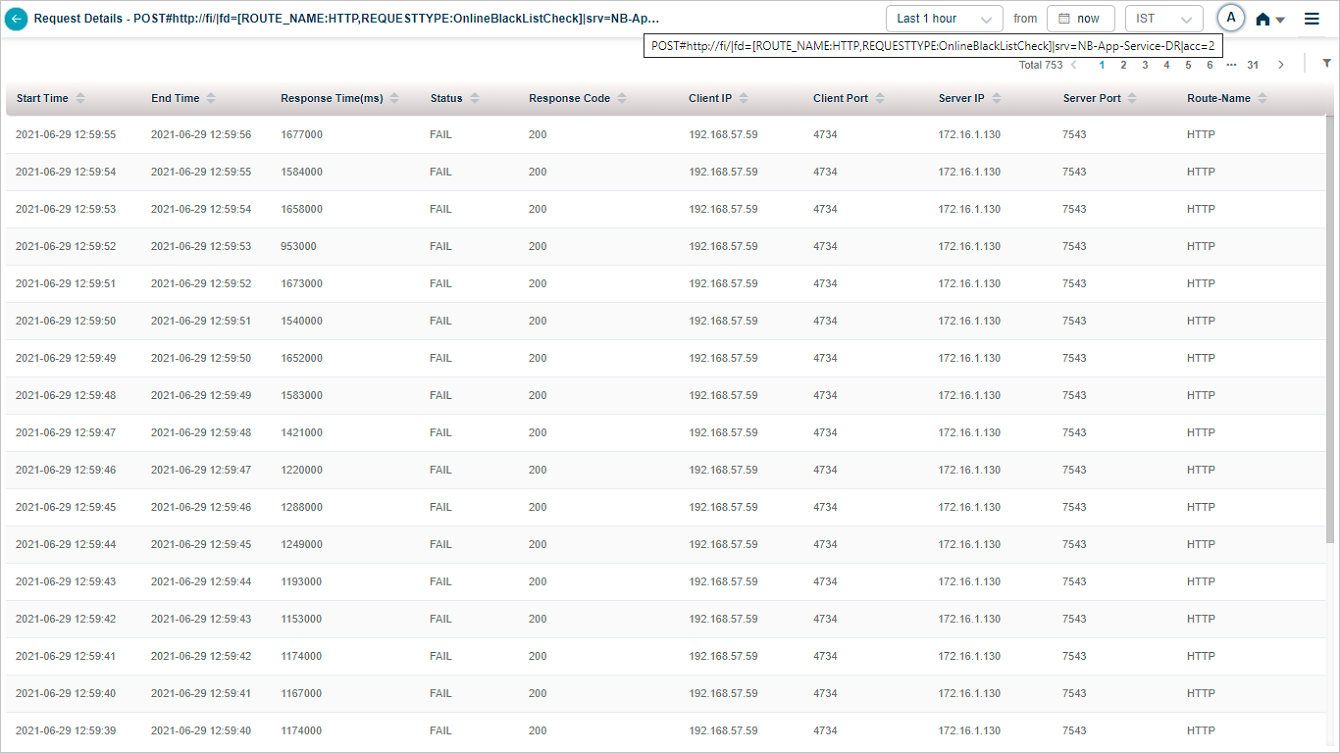
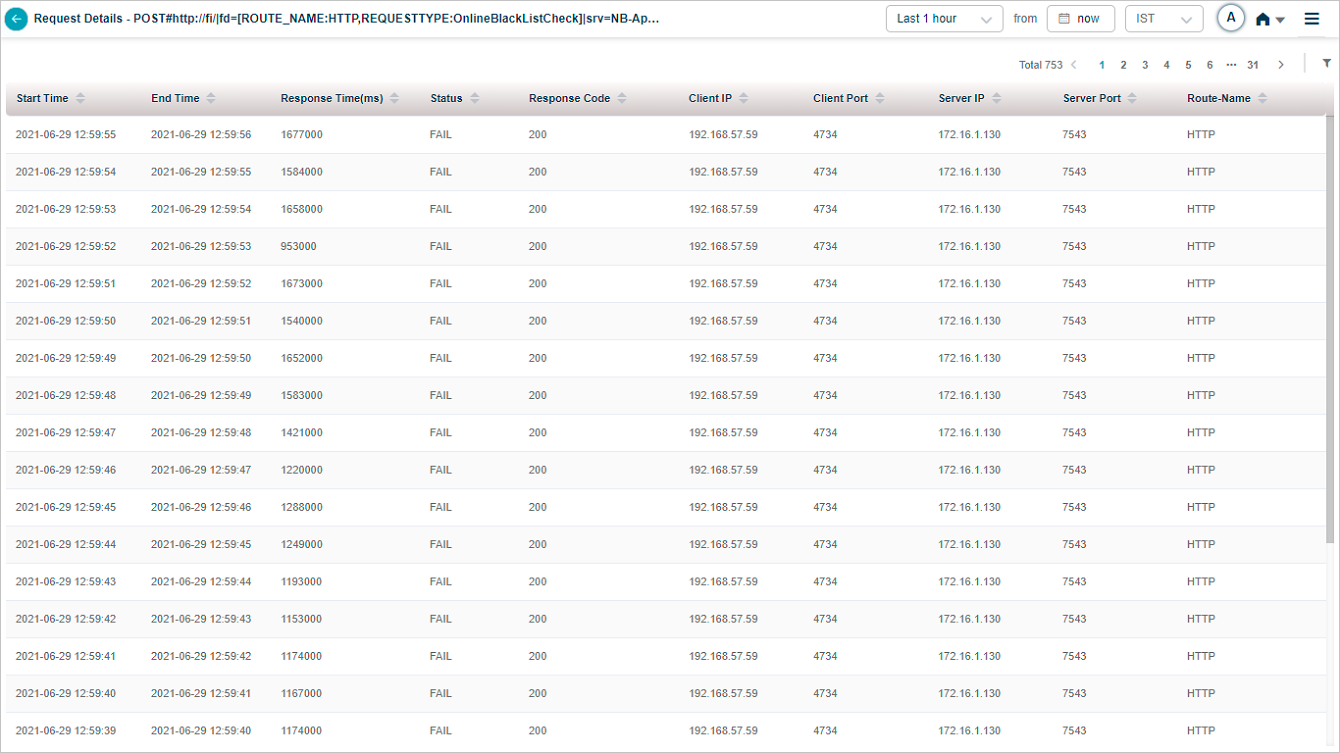
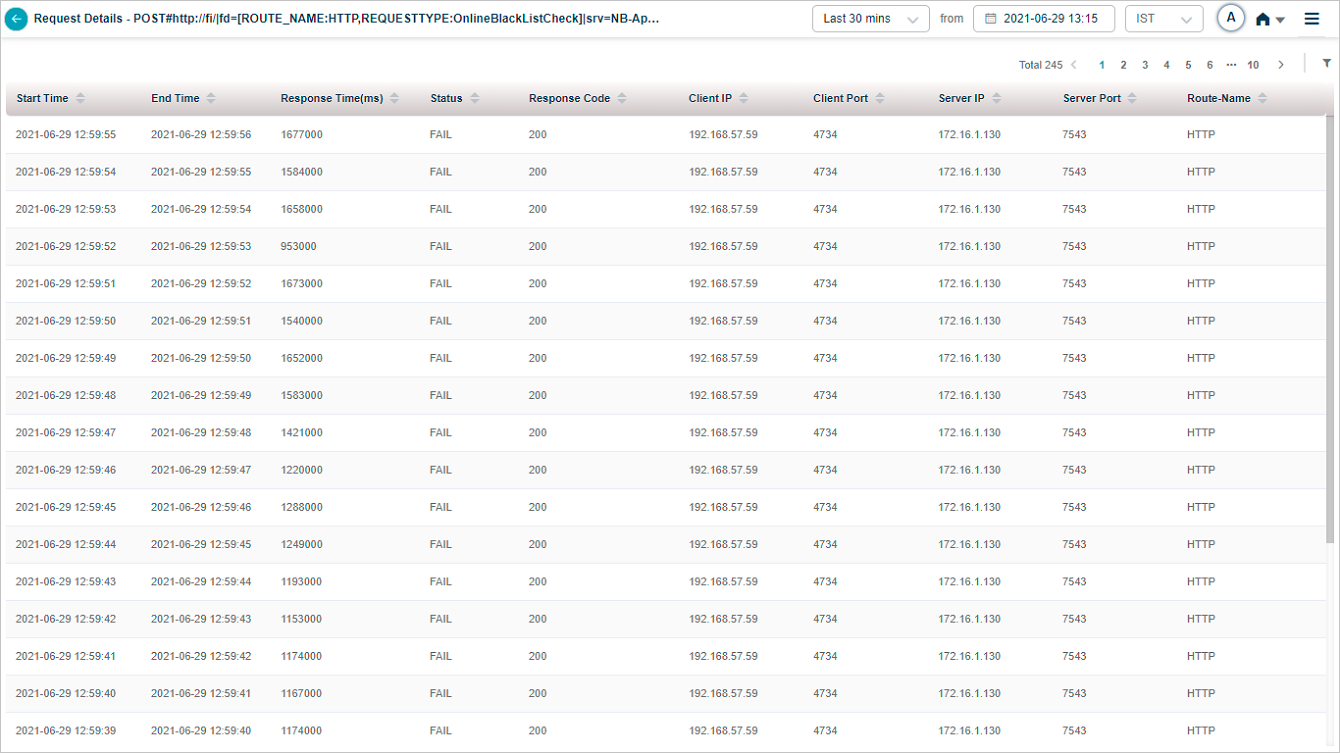
Click View Transaction Audit. The Request Details screen shows the captured request and response. Column headings come from the Display Name values you set in the Control Center. Column values come from the fields you specified in the Control Center’s GET or POST Variable boxes.
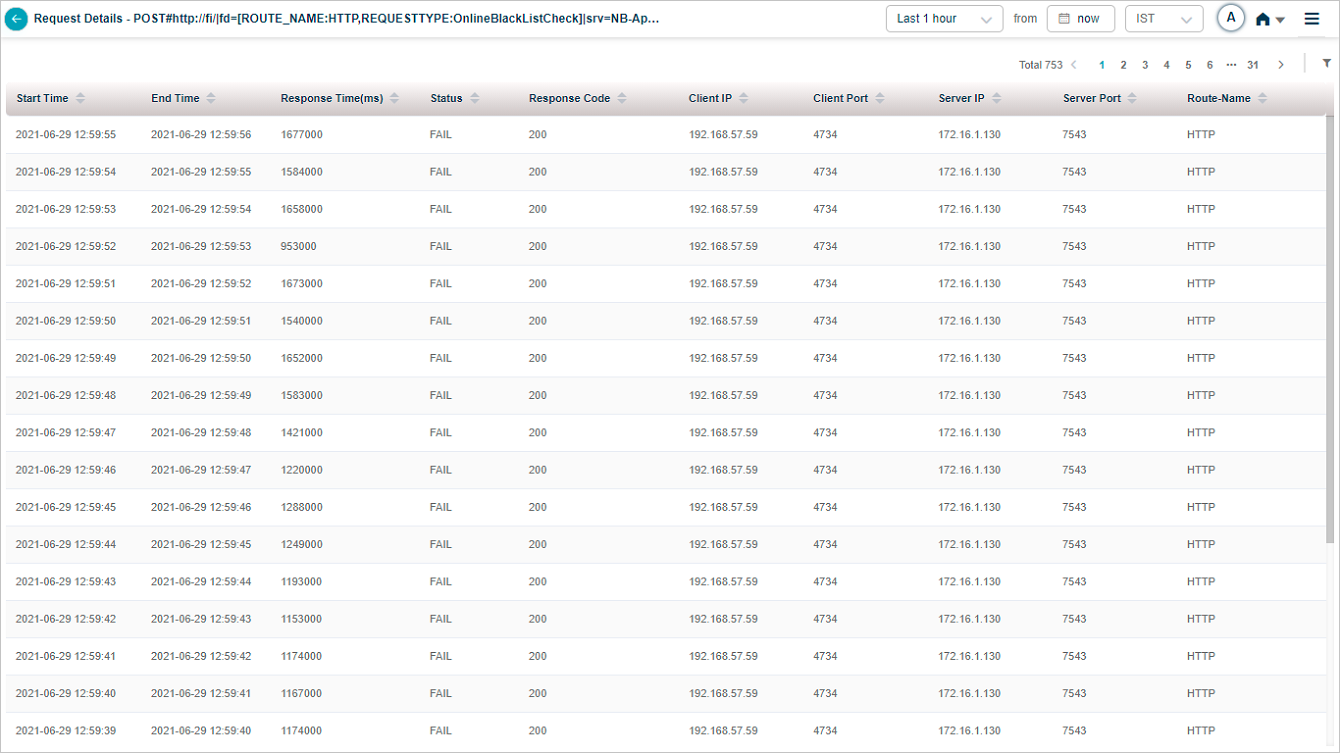
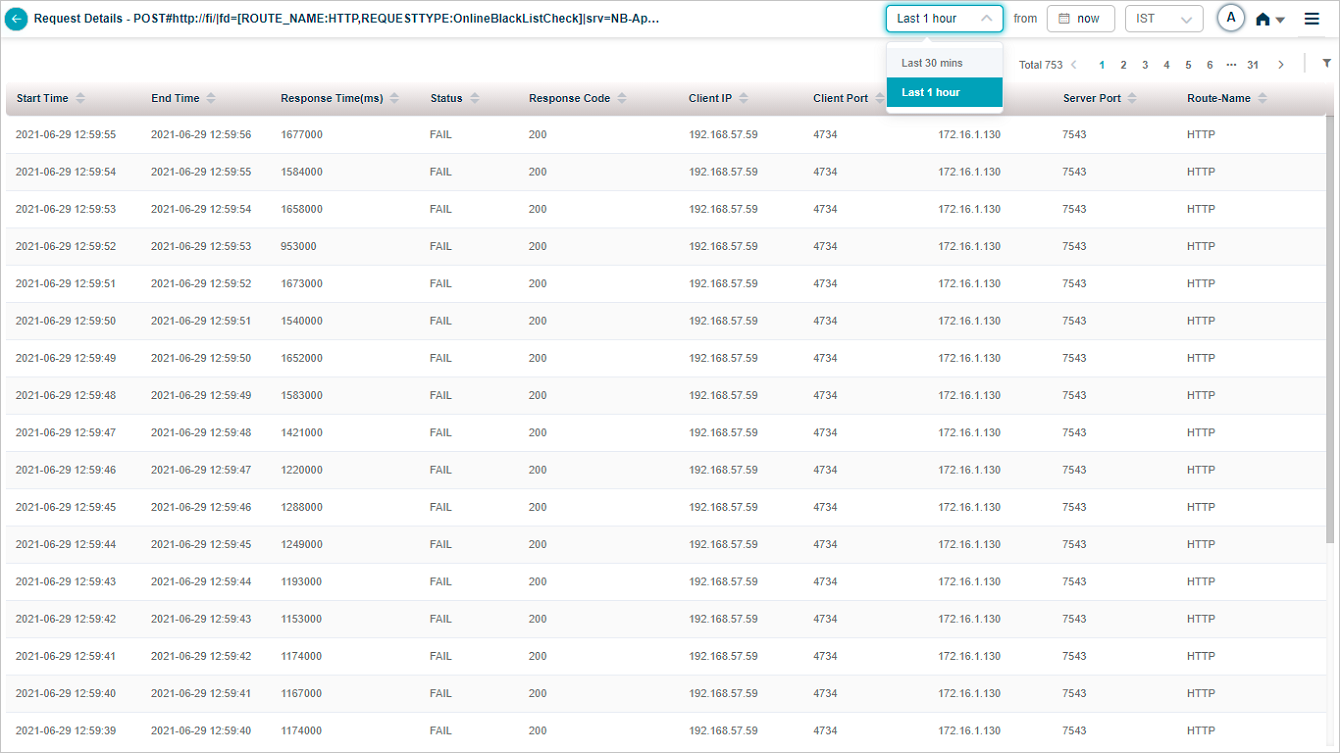
Time window. HEAL shows transaction audit data for the last 30 minutes or last 1 hour.
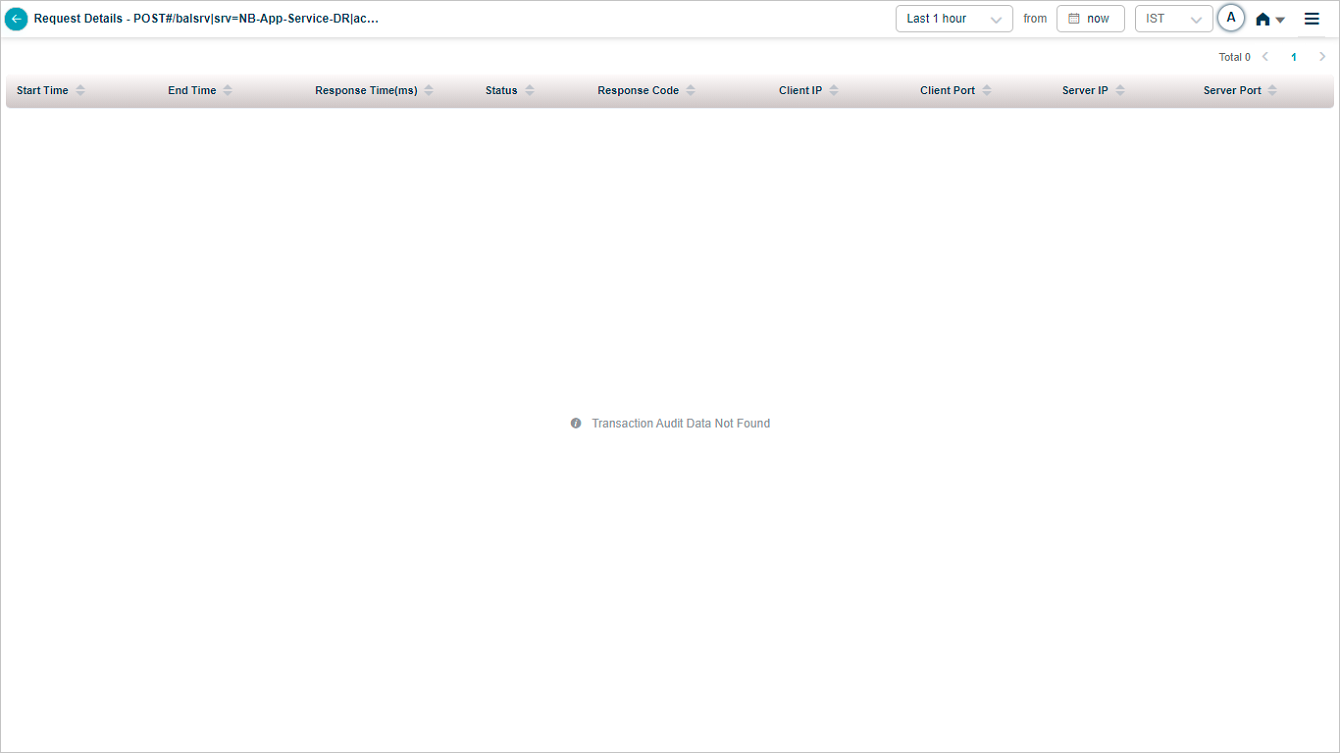
No audit data
If there is no audit data for a request, you see this view.
Next
- Viewing Request Dashboard . workload request details.
- Configuration Watch . track configuration changes.
- Viewing Forensics . event-level forensics data.
